Setting Items for Copying
You can change the copy settings such as magnification and intensity.
Copy Standby Screen
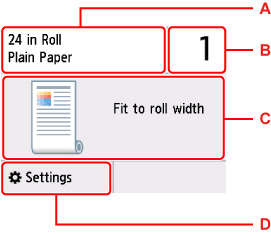
The following screen is displayed by selecting Fit to roll width copy.
The screen displayed varies depending on the copy function.
-
A: The size and type of the loaded paper are displayed.
-
B: Tap to specify the number of copies.
-
C: The copy layout is displayed.
-
D: Tap to display the print setting screen.
Print Settings Screen
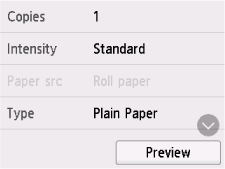
The following screen is displayed by selecting Settings in the Copy standby screen.
Preview
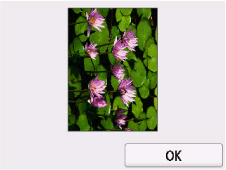
When Preview is displayed on the print settings screen, selecting Preview allows you to preview an image of the printout on the preview screen.
 Important
-
The original will be scanned to display the preview image. Therefore, do not open the document cover until the preview screen is displayed.
-
Originals are rescanned after displaying the preview screen and before copying starts. Therefore, do not open the document cover or remove the original from the platen while Scanning original... is displayed.
Setting Items
Flick to display setting items and select the setting item to display the settings. Select to specify the setting.
 Note
Note
-
The setting items displayed vary depending on the copy function.
-
Some settings cannot be specified in combination with the setting of other setting item. If the setting which cannot be specified in combination is selected,
 appears on the touch screen. In this case, select on the upper left on the touch screen to check the message and change the setting.
 -
The settings of the page size, media type, etc. are retained even if the printer is turned off.
-
When copying starts in the copy setting that is not copied, The specified function is not available with current settings. is displayed on the touch screen. Change the setting, following the on-screen instructions.
Following setting items can be changed.
-
Copies
Specify the number of copies.
-
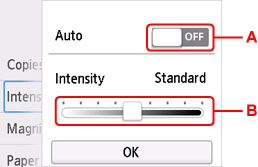
Intensity
Specify the intensity.
-
A: Tap to activate/deactivate automatic intensity adjustment.
When ON is selected, the intensity is adjusted automatically according to the originals loaded on the platen.
-
B: Drag to specify the intensity.
-
-
Magnif. (Magnification)
Specify the reduction/enlargement method.
- Reducing/Enlarging Copies (Roll paper)
- Reducing/Enlarging Copies (Cut sheet)
-
Orig. size
Select the size of the document you want to copy.
-
Page size
Select the page size of the loaded paper.
-
Type (Media type)
Select the media type of the loaded paper.
-
Print qlty (Print quality)
Adjust print quality according to the original.
Important-
If you use Draft with Type set to Plain paper and the quality is not as good as expected, select Standard or High for Print qlty and try copying again.
-
Select High for Print qlty to copy in grayscale. Grayscale renders tones in a range of grays instead of black or white.
-
-
Layout
Select the layout.
- Laying Out and Copying Multiple Originals (Roll paper)
- Copying Two Pages onto Single Page (Cut sheet)
- Copying Four Pages onto Single Page (Cut sheet)
-
Position
Select the orientation.
-
Margin
If you set to Minimal margin, the print is made with the minimal margins.
Note-
If there is a difference in the left and right margin amounts, you can adjust the margin amounts by the Roll paper minimal margin amount.
-
-
Cut lines
If you set to None, no cutting lines will be created when you perform Repeat copy to the cut sheet.
-
Split
Select how to split the image in Split & enlarge copy.
The size of the pasted area and the number of printed sheets will vary depending on the combination of the dividing method and paper size.
A1 Roll
24 in Roll
A2 Roll
18 in Roll
17 in Roll
Split: Long edge dir. 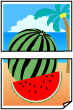
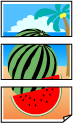
Split: Short edge dir.