Reducing/Enlarging Copies
You can specify the magnification optionally or select the preset-ratio copying or fit-to-page copying.
-
Load paper.
-
Load the original on the document platen.
-
Select
 Copy on the HOME screen.
 Note
Note-
If both roll paper and cut sheet are loaded, a screen will appear asking which one to use. Select Copy to cut sheet.
-
-
Select
 Standard copy.
 -
Select Settings.
-
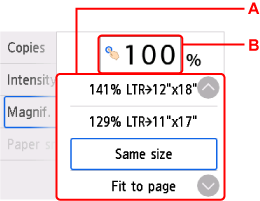
Select a magnification level in Magnif..
-
A: Flick to select the reduction/enlargement method.
-
B: Tap to specify the magnification.
-
-
Change other settings as required.
For more on the setting items:
-
Press the Black button or the Color button.
Note
-
To cancel copying, press the Stop button.
-
You can add the copying job while printing.
Reduction/enlargement Method
-
Fit to page
The printer automatically reduces or enlarges the image to fit the page size.
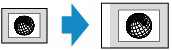
The setting in Magnif.: Fit to page
Note-
When you select Fit to page, the page size may not be detected correctly depending on the original. In this case, select the setting other than Fit to page.
-
-
Preset ratio
You can select one of the preset ratios to reduce or enlarge copies.
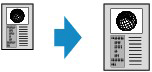
Select the appropriate ratio for size of original and page size.
Note-
Some of the preset ratios are not available depending on the country or region of purchase.
-
-
Ratio specified copy
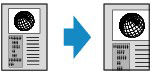
You can specify the copy ratio as a percentage to reduce or enlarge copies.
Note
-
If you make a copy at the same size as the original, select Same size.
