Setting the Minimal Margin Amount When Performing the Minimal Margin Printing
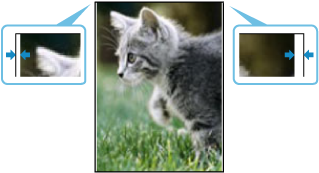
When performing the minimal margin printing, the margin width may not be uniform on the left and right sides of the paper. Widening the margins at the narrow ends may improve the problem.
 Important
-
The amount of minimal margin when performing the minimal margin printing can be set separately for the left and right edges for each paper type.
-
The set amount of minimal margin is enabled only when performing the minimal margin printing. If the left and right margins are not uniform when printing with borders, perform Adjust horizontal print position from Print settings.
-
To print with the set amount of minimal margin, the print head position is required to be adjusted beforehand. Before performing the minimal margin printing, perform Print Head Alignment - Auto or Print Head Alignment - Manual. If you perform the minimal margin printing without performing the print head alignment, a message will be displayed and the print will be made with a certain amount of larger margins.
-
To print with the set minimal margin amount, the print head height needs to be set low.
-
Paper thickness (head height): Auto or Standard
-
Prevent paper abrasion: OFF
Before performing minimal margin printing, change the settings as required. If you perform minimal margin printing with the setting that increases the print head height, a message will be displayed and the print will be made with a certain amount of larger margins.
-
-
The minimal margin printing cannot be performed when Detect paper width is set to Disable. Before performing the minimal margin printing, set Detect paper width to Enable for the paper type to be printed.
 Note
Note
-
This product supports the minimal margin printing. Depending on the application you use to print, this may be displayed as borderless printing.
Set the Amount of the Minimal Margin
-
Select
 (Setup) on the HOME screen.
 -
Select
 Printer settings.
 -
Select Paper-related settings.
-
Select Advanced paper settings.
-
Select the paper type for which you want to change the setting.
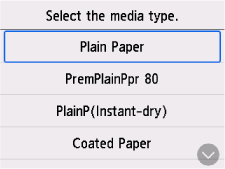 Important
-
If you select a paper type that does not support the minimal margin printing, you cannot set the amount of the minimal margin. For the paper types that support the minimal margin printing, see "Minimal Margin Printing" item for each paper type in the Paper Settings List (Roll Paper).
-
-
Select Roll paper minimal margin amount.
-
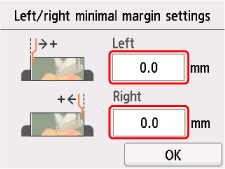
Set the left and right adjustment values and select OK.
 Note
Note-
The larger the set adjustment value, the wider the left and right margins. The adjustment value can be set in the range of 0 mm to 0.7 mm in 0.1 mm increments.
-
After setting, we recommend to perform the minimal margin printing to check the margin status.
-
