Print a Single Original to Sheet Multiple Times Using a Layout
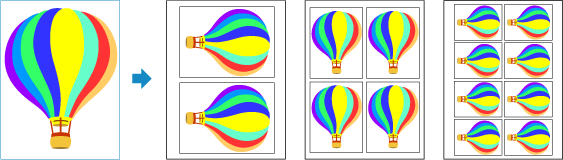
You can reduce an A4 or letter size original and print it repeatedly on one sheet of paper.
-
Load paper.
-
Load the original on the document platen.
-
Select
 Copy on the HOME screen.
 Note
Note-
If both roll paper and cut sheet are loaded, a screen will appear asking which one to use. Select Copy to cut sheet.
-
-
Select
 Repeat copy.
 -
Check message and select OK.
-
On the Copy standby screen, specify settings as necessary.
For more on the setting items:
-
Press the Black button or the Color button.
The printer starts copying.
Note
-
To cancel copying, press the Stop button.
-
If you have set Cut lines to Print in Settings, cut the sheet as necessary after the copying is completed. You cannot specify the distance between the cut lines and the image.
