Laying Out and Copying Multiple Originals
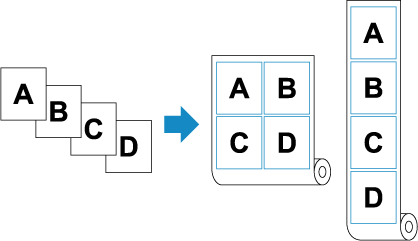
You can print two to four originals on the roll paper by laying out them.
 Important
-
Use the same size as the first sheet of the original for the second and subsequent sheets of the originals.
The second and subsequent sheets of the originals are scanned with the same size as the first sheet of the original, so if you use the originals of different sizes, there will be missing or blank areas in the image.
-
Load paper.
-
Load the original on the document platen.
-
Select
 Copy on the HOME screen.
 Note
Note-
If both roll paper and cut sheet are loaded, a screen will appear asking which one to use. Select Copy to roll paper.
-
-
Select
 Layout copy.
 -
Select the number of sheets of originals.
-
Select the orientation of originals.
-
On the Copy standby screen, specify settings as necessary.
For more on the setting items:
-
Press the Black button or the Color button.
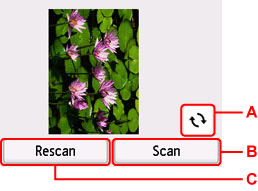
When the first sheet of the original has been scanned, the following screen is displayed.
-
A: Select to rotate the original by 180 degrees.
-
B: Select to start scanning the original.
-
C: Select to rescan the original.
-
-
Check the preview screen and select Scan.
-
Load the subsequent sheet of the original on the platen and select Scan.
-
Check the preview screen and select Scan.
If there are three or more sheets of originals, repeat steps 10 and 11.
When the scanning of the last original has been completed, the printer starts copying.
Note
-
If Cannot process because device memory is full. appears on the touch screen when scanning, set Print qlty to Standard and try copying again. If the problem is not resolved when Type is set to Plain paper, set Print qlty to Draft and try copying again.
-
To cancel copying, press the Stop button.
