Customizing the Home screen
Arrange the Home screen so you can quickly run functions you use frequently.
 Important
-
Administrator privileges are required to customize the Home screen.
Adding a shortcut button
Add Favorite Settings for copying/scanning that you have already registered to the Home screen as a shortcut button.
Add shortcut buttons using the operation panel.
Important
-
Shortcut buttons cannot be added from a PC using the Remote UI.
-
In the Home screen, select Home Screen Settings.
If a login screen appears, enter the Administrator ID and Administrator PIN, and select Login.
-
Select Select Button to Display.
-
Select Favorite Copy Settings or Favorite Scan Settings.
-
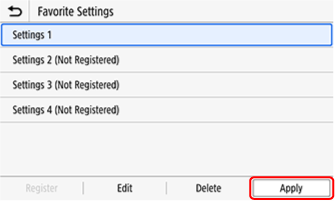
Checkmark the settings to set as a shortcut button, and select Apply.
 Note
Note-
To delete an added shortcut button, uncheckmark the settings to delete, and select Apply.
-
-
Check that all items appear correct, and select OK.
The shortcut button is added to the Home screen.
Changing the button layout
You can rearrange buttons in the Home screen, or move them to different tabs.
Note
-
You can also change button layout from a PC using the Remote UI. To change names of tabs, the Remote UI must be used.
-
Long-press a button in the Home screen.
-
Check the message, and select Yes.
If a login screen appears, enter the Administrator ID and Administrator PIN, and select Login.
-
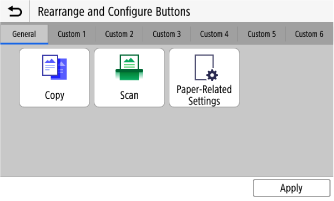
Drag the button you want to change, and release it where it is to be placed.
Drag a button to another tab, and the button moves to the screen for that tab. However, if that screen has reached its limit of buttons, the button cannot be moved there.
-
Select Apply.
The button layout in the Home screen changes.
