Start up Remote UI
The Remote UI functions through your web browser to allow you to check the printer's activity, change settings, and make address book registration. You can manage/configure the printer remotely, as well as save time making settings and registrations efficiently with a PC.
The Remote UI is divided into the following two modes. Depending on which mode you are logged in to, the Remote UI enables you to do different things.
-
Administrator Mode
Allows you to use all Remote UI functions.
-
General User Mode
Available operations are limited to functionality such as checking usage/logs, canceling printing, and making changes to some settings.
 Important
-
To use the Remote UI, Administrator information or a Remote UI password must be set. Before using the Remote UI for the first time, be sure to set either one at the printer.
-
Be sure to connect the printer to a LAN when using the Remote UI.
How to start up the Remote UI
To use the Remote UI, access the printer's IP address from the PC's web browser, and log in with Administrator Mode or General User Mode.
 Note
Note
-
You can use Remote UI on the following OS and the web browser.
-
iOS device
Web browser: Safari, UC Browser
-
Android device
Web browser: Google Chrome, UC Browser
-
macOS device
Web browser: Safari, Google Chrome
-
Windows device
Web browser: Microsoft Edge, Google Chrome
-
-
Enable JavaScript and cookies in the web browser.
-
Check printer's IP address.
You can check the printer's IP address from Status Monitor > Network Information.
-
Open web browser on your smartphone, tablet, or computer and enter IP address.
Enter as following in the URL field of the web browser.
http://<Printer's IP address>/
Note-
If entering an IPv6 address, enter the IP address enclosed in [ ].
Entry example: http://[fe80:2e9e:fcff:fe4e:dbce]/
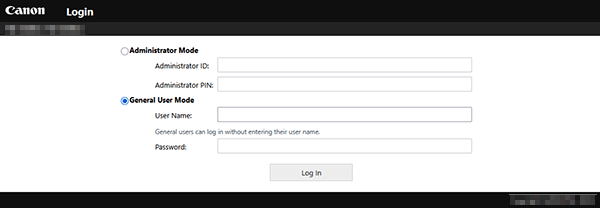
The Remote UI login screen appears.
 Note
Note-
If Remote UI communication is encrypted, a warning may be displayed regarding security certificates. Continue with operation if no problems are encountered with certificates or TLS.
-
If Remote UI cannot be used. appears, check if the Remote UI is set not to be used.
-
-
Enter login information
Select Administrator Mode or General User Mode, and enter required items according to how settings are configured.
-
Administrator Mode:
Enter the Administrator ID and Administrator PIN.
-
General User Mode:
Enter a Remote UI password.
-
-
Select Log In.
The Remote UI portal screen appears.
When you finish checking printer status and changing printer settings, select Log Out.
