Copying
Basic operation when copying printed matter (originals) such as documents and photos is described.
-
Load paper.
-
Load the original.
-
Select Copy on the Home screen.
-
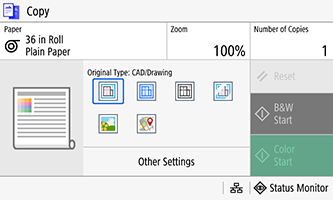
Set Zoom / Number of Copies / Original Type.
-
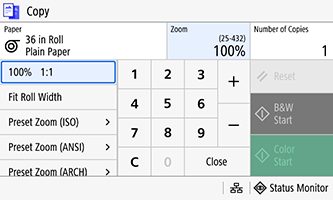
Zoom
Set enlarged copying/reduced copying.
-
Enlarging/reducing with a specified standard size
Select Scan Size and Output Size from the preset zoom items. You can set the same standard (ISO, etc.) page size for Scan Size and Output Size.
-
Enlarging/reducing with a specified zoom
Enter a zoom and select Close. Zoom can be set in increments of 1% from 25% to 432%. Select 100% to set to 100%.
-
Enlarging/reducing to fit the roll paper width
Select Fit Roll Width. The zoom is set automatically according to the size of the roll paper used for copying. This can be selected when copying to roll paper.
-
-
Number of Copies
Specify the number of copies. Enter the number of copies, and press Close.
-
Original Type
Set the type of original to copy.
-
CAD (Line Drawing)
Select this to copy CAD drawing-type line drawings.
-
Blueprint (Black & White Conversion)
Select to copy blueprint drawings.
-
Inverse Blueprint (Black & White Conversion)
Select to copy inverse blueprint drawings.
-
Tracing Paper
Select to copy tracing paper, etc.
-
Poster/Photo
Select to copy posters, photos, etc.
-
Drawing/Map
Select to copy drawings and maps.
 Important
-
This product allows you to select Blueprint (Black & White Conversion) and Inverse Blueprint (Black & White Conversion) original types. Depending on the condition of the original, copying results may not be as intended, such as background remaining or lines being incomplete.
-
Blueprint (Black & White Conversion) and Inverse Blueprint (Black & White Conversion) are settings specialized for scanning blueprint originals. All data scanned using these settings are output in monochrome (black and white only). To scan while retaining an original's color information and gray scale information, use the CAD (Line Drawing) setting.
-
-
-
Make other copy settings as required.
You can make settings to suit the original and purpose of copying. See the following for details on setting items.
-
Select B&W Start or Color Start.
Original scan begins.
 Note
Note-
To stop copying, select Cancel or press the Stop button.
-
Check the copy job status and log from Status Monitor.
-
-
Holding the original to prevent it from falling, select OK.
The retainer releases the original, so allow the original to move. Printing starts.
