Turning the Printer On and Off
Turning the printer on
-
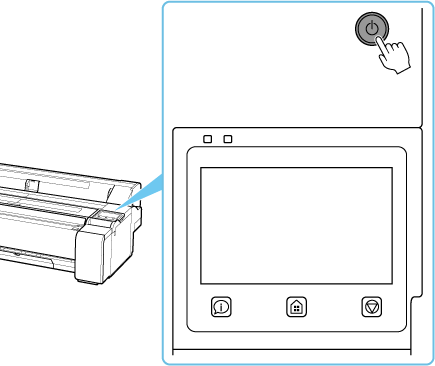
Press ON button to turn on printer.
The ON button lights up and the printer will now start up.
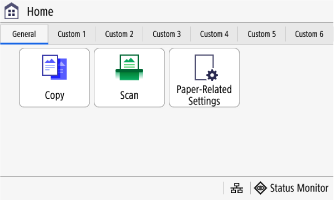
When startup is finished, the printer enters standby mode.
 Important
-
After the printer is powered on and the startup screen is displayed, the Home screen appears with initial settings. The Overview screen can also be set to appear.
The printer will not enter standby mode in the following situations. Take action as necessary.
-
If "Error" is shown on the touch screen
Check the message on the touch screen and take action as necessary.
-
If neither the ON button or Data Lamp light up even once, or if nothing is displayed in the touch screen
Check the connection at the plug and electrical outlet.
-
Turning the printer off
Important
-
Never disconnect the printer's power supply or unplug it during a print job. This may damage the printer.
-
Make sure no print jobs are in progress.
The printer is operating while the Data Lamp is flashing.
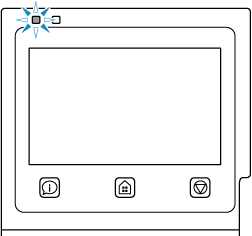
If the Error Lamp is flashing or lit, check the message in the touch screen and take the appropriate action.
Operation such as printing or receiving data is being carried out while the Data Lamp is flashing. A lit lamp indicates data is waiting to be processed.
-
Hold down the ON button for more than a second.
The touch screen goes out, and the printer powers off.
 Note
Note
-
You can also power off the printer from the Remote UI.
Power off the printer in the portal screen from Settings/Registration > Device Management > Remote Shutdown.
-
Once the printer powers off, queued print data is erased.
However, the following kinds of data are not erased even when the printer is powered off.
-
Queued send data
-
Restarting the printer
After changing printer settings, the printer must be restarted to apply the changes for some setting items.
-
Power off the printer.
-
After powering off the printer, power the printer back on.
Note
-
You can also restart the printer from the Remote UI. Administrator privileges are required to operate the printer using the Remote UI.
Restart the printer in the portal screen from Settings/Registration > Restart Device.
