
Main Screen
You can specify and print files on the Direct Print & Share main screen. The main screen consists of the Registered file list on the left side, the preview area in the center, and the print settings area on the right side.
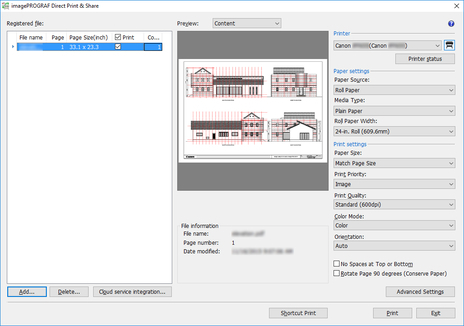
- Registered file List
-
Register files that you want to print to this list. For details on the Registered file list, see "Registered file List".
- Add button
-
Click this button when adding files to the Registered file list. For details on how to add files, see "Add Files That You Want to Print".
- Delete button
-
Select the appropriate files and click this button when deleting files from the Registered file list.
- Cloud service integration button
-
The Cloud service integration dialog box is displayed. Use this when downloading files from cloud storage and uploading files to cloud storage.
-
For details on the Cloud service integration dialog box, see "Cloud service integration Dialog Box".
- Preview
-
A preview is displayed for file selected in the Registered file list.
-
A file image is displayed by selecting Content from the pull-down menu. File name, date modified, etc. are displayed in File information.
-
By selecting Layout, a layout on the paper for printing will be displayed. Specified page size, paper size, etc. are displayed in Print information.
 Note
Note-
Only the Layout preview is possible for HP-GL/2.
-
- Printer
-
Select a printer to print a file.
 button
-
Click this button when adding a printer to the Printer pull-down menu. For details on how to add printers, see "Add a Printer to Use".
- Printer status button
-
Starts Status Monitor for the selected printer, and allows you to confirm the printer job status or other details.
- Note
-
For details on the Status Monitor, see the Status Monitor help.
-
- Paper settings
-
You can set Paper Source, Media Type, and Roll Paper Width from among the printer driver settings.
-
This cannot be specified when a HP-GL/2 format file is selected.
- Print settings
-
You can set Paper Size, Print Priority, Print Quality, Color Mode, Orientation, No Spaces at Top or Bottom, and Rotate Page 90 degrees (Conserve Paper) from among the printer driver settings.
-
Only Print Quality can be specified when a HP-GL/2 format file is selected.
 Important
-
Selecting a setting other than Match Page Size in Paper Size prints the image smaller or larger to fit the print area of the output paper size.
-
- Note
-
Refer to the printer driver help for instructions on each of the printer driver settings.
-
The Auto of Orientation cannot be set by driver properties. By selecting Auto, an appropriate orientation will be automatically set for each page.
-
- Advanced Settings button
-
Driver properties are displayed. For settings not in Paper settings and Print settings, open up driver properties.
-
This button cannot be clicked when a HP-GL/2 format file is selected.
- Shortcut Print button
-
The Shortcut Print dialog box is displayed. This allows you to create a shortcut icon that is able to print simply by dropping the data to print on it.
-
For details on how to create a shortcut print icon, see "Creating a Shortcut Print Icon".
- Print button
-
The printer starts printing. The Print dialog box is displayed during printing.
 button
-
The Direct Print & Share Online Manual appears.
 icon
icon-
Version information, etc. is displayed.
