
Creating a Shortcut Print Icon
You can create an icon that allows you to print by dropping print data onto it.
The following procedure is used to create shortcut print icons.
-
Open main screen.

-
Register the files to print. (See "Add Files That You Want to Print")
-
Select the printer for printing the files in Printer.
-
Change the settings as needed in the print settings area on the right side. (See "Main Screen")
-
Click the Shortcut Print button.
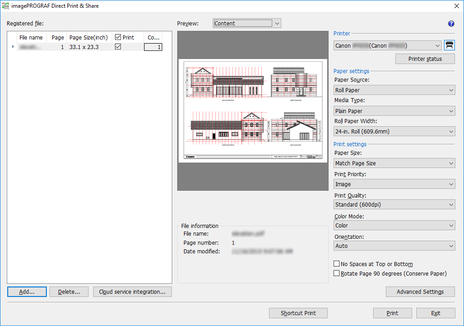
The Shortcut Print dialog box is displayed.
-
Select the type of icon to create and click the Next button.
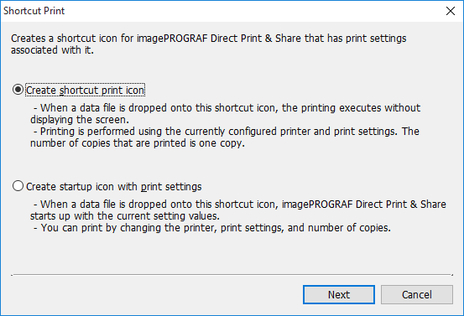
The Save As dialog box is displayed.
-
Enter the icon name to create in File name and click the Save button.
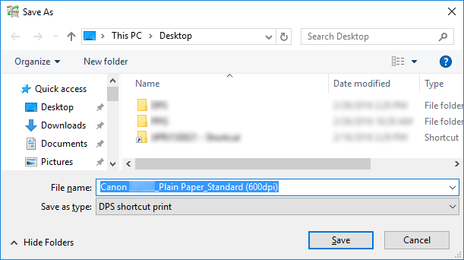
The created icon is added to the folder specified in the Save As dialog box.
The default icon name is as follows.
-
"Friendly name"_"Media type"_"Print Quality"
If the file format is HP-GL/2, "Media type" is "GL2" instead of the media type.
 Important
-
Do not change the friendly name of a printer used for shortcut printing.
-
-
