
Cloud service integration Dialog Box
You can log in to the cloud service, download files from cloud storage and upload files to cloud storage.
Click the Cloud service integration button on the main screen to display.
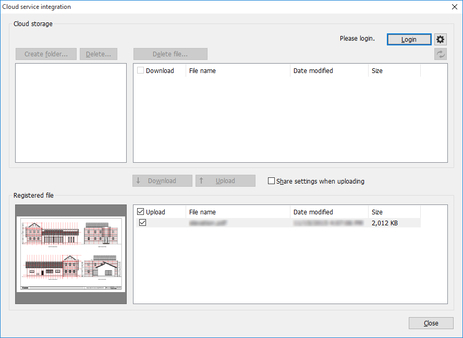
- Cloud storage
-
A list of your folders and files in the cloud storage you are logged into will be displayed.
- Storage
-
The cloud storage that is currently logged in is displayed.
- Download check box
-
There are Download check boxes on the left side of the Cloud storage file list.
-
If you turn on the check boxes located on the left side of the file name of the files you want to download, and then click the Download button located below the file list, downloads from cloud storage will begin for only those files that have their check boxes turned on.
 Note
Note-
By turning on the check box next to Download in the file list, you can turn on the check boxes for all of the files. If you turn off the check box, the check boxes for all of the files will be turned off.
-
- Login button
-
The Cloud storage selection dialog box is displayed. For details on the Cloud storage selection dialog box, see "Cloud storage selection Dialog Box".
- Logout button
-
Log out of the cloud service.
 button
-
The Preferences dialog box is displayed. Use this when adding and deleting the cloud storage to use and making settings related to file download from cloud storage.
-
For details on the Preferences dialog box, see "Preferences Dialog Box".
- Create folder button
-
Click this button when you want to create a new folder inside of the cloud storage you are logged into.
- Delete button
-
Select the appropriate folders and click this button when deleting folders from the cloud storage you are logged into. The selected folder along with all of its files will be deleted.
- Delete file button
-
Select the appropriate files and click this button when deleting files from the cloud storage you are logged into.
 button
-
The list of your folders and files in the cloud storage you are logged into will be updated.
-
Click this button if you have changed the folders or files in cloud storage by any means other than Direct Print & Share, such as using Internet Explorer.
- Registered file list
-
The file to be used in Direct Print & Share appears. This is the same list as the Registered file list on the main screen.
-
Files downloaded from cloud storage will be added to this list. If you want to upload files to cloud storage, you first need to add them to the list.
- Upload check box
-
There are Upload check boxes on the left side of the file list in Registered file.
-
If you turn on the check boxes located on the left side of the file name of the files you want to upload, and then click the Upload button located above the file list, uploads to cloud storage will begin for only those files that have their check boxes turned on.
- Note
-
By turning on the check box next to Upload, you can turn on the check boxes for all of the files. If you turn off the check box, the check boxes for all of the files will be turned off.
-
- Download button
-
Files that have their Download check boxes turned on will be downloaded from cloud storage. For details on how to download files, see "Download Files from Cloud Storage".
- Upload button
-
Files that have their Upload check boxes turned on will be uploaded to cloud storage. For details on how to upload files, see "Upload Files to Cloud Storage".
- Share settings when uploading
-
If you turn on the check box and click the Upload button, the Share settings dialog box will be displayed. In the Share settings dialog box, you can make settings for users with whom you want to share uploaded files.
-
For details on the Share settings dialog box, see "Share settings Dialog Box".
- Close button
-
The Cloud service integration dialog box will be closed.
