
Registered file List
Register the file to be used in Direct Print & Share.
Files registered in this list can be printed from Direct Print & Share.
 Important
-
Files to be uploaded to cloud storage must also be registered to the list in advance.
-
Supported file types for preview and print include JPEG, TIFF, PDF (excluding encrypted PDFs), and HP-GL/2. Although it is not possible to preview or print for file types other than those specified above, you can still upload them to cloud storage.
-
Only the Layout preview is possible for HP-GL/2 previews.
-
You can force to process a file as HP-GL/2 by selecting and right-clicking a file and then selecting the Process in HP-GL/2 format check box. However, do not select Process in HP-GL/2 format for files other than HP-GL/2. If a file that is not HP-GL/2 is printed with this option turned on, it might not print correctly or a large amount of paper may be output.
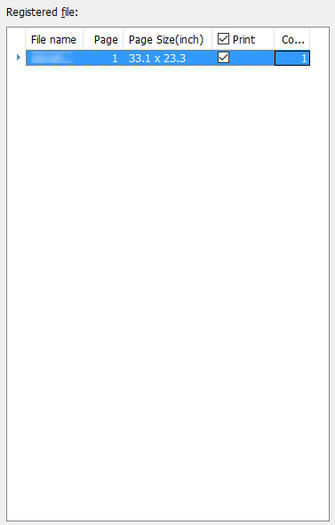
- File name
-
The file name is displayed. Files consisting of multiple pages can be expanded and viewed on a per page basis by clicking the triangle to the left of the file name.
- Page
-
The file page count is displayed.
- Page Size
-
The page size is displayed.
- Important
-
If the page size is out of the range of settable sizes in the custom size settings of the printer driver, you will not be able to preview or print the file or pages.
To check the paper size that can be set with Custom Size Settings, click the Advanced Settings button on the main screen to open the driver properties. Select Custom Paper Size on the Page Setup sheet in Page Size, and then select Custom Size and check the screen that appears.
-
- Print check box
-
Turn on the check box for the file or page that you want to print. After clicking the Print button located in the lower right of the main window, printing will begin only for files and pages that had their Print check boxes turned on.
 Note
Note-
By turning on the check box next to Print, you can turn on the check boxes for all of the files. If you turn off the check box, the check boxes for all of the files will be turned off.
-
When only a portion of the check boxes are turned on, you can turn on all of the check boxes by clicking the check box next to Print. By clicking the check box again, all of the check boxes will be turned off. If you click the check box once again, the check boxes for the files will return to their original state. Repeatedly clicking the check box next to Print will alternate between states of "all on", "all off", and "some on".
-
- Copies
-
Enter the number of copies to print for each of the files that have their Print check boxes turned on.
- Note
-
In the case of HP-GL/2 format files, the number of copies to print is configured in the file. The actual number of copies that is printed is as follows.
-
(The number of copies entered here) x (The number of copies configured in the HP-GL/2 file)
-
-
