
Các Thao Tác Cơ Bản Windows
|
|
|
Tùy vào máy tính bạn sử dụng mà thao tác có thể khác nhau.
|
Hiển thị Thư Mục Máy In
Windows 7/Server 2008 R2
[Start (Start)] chọn [View devices and printers (View devices and printers)].
[Start (Start)]
chọn [View devices and printers (View devices and printers)].Windows Server 2012
Nhấp chuột phải vào phía góc dưới bên trái của màn hình chọn [Control Panel (Control Panel)] [View devices and printers (View devices and printers)].
Nhấp chuột phải vào phía góc dưới bên trái của màn hình
chọn [Control Panel (Control Panel)] [View devices and printers (View devices and printers)].Windows 8.1/Server 2012 R2
Nhấp chuột phải vào [Start (Start)] chọn [Control Panel (Control Panel)] [View devices and printers (View devices and printers)].
Nhấp chuột phải vào [Start (Start)]
chọn [Control Panel (Control Panel)] [View devices and printers (View devices and printers)].Windows 10
[ ] chọn [Windows System (Windows System)] [Control Panel (Control Panel)] [Hardware and Sound (Hardware and Sound)] [Devices and Printers (Devices and Printers)].
[
] chọn [Windows System (Windows System)] [Control Panel (Control Panel)] [Hardware and Sound (Hardware and Sound)] [Devices and Printers (Devices and Printers)].Windows Server 2008
[Start (Start)] chọn [Control Panel (Control Panel)] nhấp đúp vào [Printers (Printers)].
[Start (Start)]
chọn [Control Panel (Control Panel)] nhấp đúp vào [Printers (Printers)].Windows Server 2016
Nhấp chuột phải vào [] chọn [Control Panel (Control Panel)] [Hardware (Hardware)] [Devices and Printers (Devices and Printers)].
Nhấp chuột phải vào [
] chọn [Control Panel (Control Panel)] [Hardware (Hardware)] [Devices and Printers (Devices and Printers)].Đang bật [Network discovery (Network discovery)]
Bật [Network discovery (Network discovery)] để xem các máy tính trên mạng của bạn.
Windows 7/Server 2008 R2
[Start (Start)] chọn [Control Panel (Control Panel)] [View network status and tasks (View network status and tasks)] [Change advanced sharing settings (Change advanced sharing settings)] chọn [Turn on network discovery (Turn on network discovery)] dưới [Network discovery (Network discovery)].
[Start (Start)]
chọn [Control Panel (Control Panel)] [View network status and tasks (View network status and tasks)] [Change advanced sharing settings (Change advanced sharing settings)] chọn [Turn on network discovery (Turn on network discovery)] dưới [Network discovery (Network discovery)].Windows Server 2012
Nhấp chuột phải vào phía góc dưới bên trái của màn hình chọn [Control Panel (Control Panel)] [View network status and tasks (View network status and tasks)] [Change advanced sharing settings (Change advanced sharing settings)] chọn [Turn on network discovery (Turn on network discovery)] trong phần [Network discovery (Network discovery)].
Nhấp chuột phải vào phía góc dưới bên trái của màn hình
chọn [Control Panel (Control Panel)] [View network status and tasks (View network status and tasks)] [Change advanced sharing settings (Change advanced sharing settings)] chọn [Turn on network discovery (Turn on network discovery)] trong phần [Network discovery (Network discovery)].Windows 8.1/Server 2012 R2
Nhấp chuột phải [Start (Start)] chọn [Control Panel (Control Panel)] [View network status and tasks (View network status and tasks)] [Change advanced sharing settings (Change advanced sharing settings)] chọn [Turn on network discovery (Turn on network discovery)] dưới [Network discovery (Network discovery)].
Nhấp chuột phải [Start (Start)]
chọn [Control Panel (Control Panel)] [View network status and tasks (View network status and tasks)] [Change advanced sharing settings (Change advanced sharing settings)] chọn [Turn on network discovery (Turn on network discovery)] dưới [Network discovery (Network discovery)].Windows 10
[] chọn [Windows System (Windows System)] [Control Panel (Control Panel)] [View network status and tasks (View network status and tasks)] [Change advanced sharing settings (Change advanced sharing settings)] chọn [Turn on network discovery (Turn on network discovery)] trong phần [Network discovery (Network discovery)].
[
] chọn [Windows System (Windows System)] [Control Panel (Control Panel)] [View network status and tasks (View network status and tasks)] [Change advanced sharing settings (Change advanced sharing settings)] chọn [Turn on network discovery (Turn on network discovery)] trong phần [Network discovery (Network discovery)].Windows Server 2008
[Start (Start)] chọn [Control Panel (Control Panel)] nhấp đúp vào [Network and Sharing Center (Network and Sharing Center)] chọn [Turn on network discovery (Turn on network discovery)] dưới [Network discovery (Network discovery)].
[Start (Start)]
chọn [Control Panel (Control Panel)] nhấp đúp vào [Network and Sharing Center (Network and Sharing Center)] chọn [Turn on network discovery (Turn on network discovery)] dưới [Network discovery (Network discovery)].Windows Server 2016
Nhấp chuột phải vào [] chọn [Control Panel (Control Panel)] [View network status and tasks (View network status and tasks)] [Change advanced sharing settings (Change advanced sharing settings)] chọn [Turn on network discovery (Turn on network discovery)] dưới [Network discovery (Network discovery)].
Nhấp chuột phải vào [
] chọn [Control Panel (Control Panel)] [View network status and tasks (View network status and tasks)] [Change advanced sharing settings (Change advanced sharing settings)] chọn [Turn on network discovery (Turn on network discovery)] dưới [Network discovery (Network discovery)].Hiển Thị Các Máy In Chung trong Máy Chủ In
1
Mở Windows Explorer.
Windows 7/Server 2008
[Start (Start)] chọn [All Programs (All Programs)] hoặc [Programs (Programs)] [Accessories (Accessories)] [Windows Explorer (Windows Explorer)].
[Start (Start)]
chọn [All Programs (All Programs)] hoặc [Programs (Programs)] [Accessories (Accessories)] [Windows Explorer (Windows Explorer)].Windows Server 2012
Nhấp chuột phải vào phía góc dưới bên trái của màn hình chọn [File Explorer (File Explorer)].
Nhấp chuột phải vào phía góc dưới bên trái của màn hình
chọn [File Explorer (File Explorer)].Windows 8.1/Server 2012 R2
Nhấp chuột phải vào [Start (Start)] chọn [File Explorer (File Explorer)].
chọn [File Explorer (File Explorer)].Windows 10/Server 2016
Nhấp chuột phải vào [] chọn [File Explorer (File Explorer)].
Nhấp chuột phải vào [
] chọn [File Explorer (File Explorer)].2
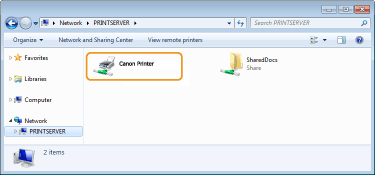
Chọn máy chủ máy in trong [Network (Network)] hoặc [My Network Places (My Network Places)].
Để xem các máy tính trong mạng, bạn có thể phải bật phát hiện mạng hoặc tìm kiếm mạng cho máy tính.
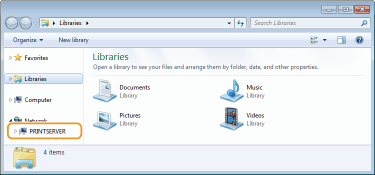
Các máy in chung sẽ được hiển thị.
Hiển thị màn hình [Cài Đặt Chương Trình/Hướng Dẫn Sử Dụng Phần Mềm (Software Programs/Manuals Setup)]
Nếu máy tính của bạn không hiển thị màn hình [Cài Đặt Chương Trình/Hướng Dẫn Sử Dụng Phần Mềm (Software Programs/Manuals Setup)] sau khi bạn đặt vào DVD-ROM được cung cấp, hãy làm theo các bước sau đây. Hướng dẫn này chỉ định tên ổ đĩa DVD-ROM là "D:". Tên ổ đĩa DVD-ROM có thể thay đổi tùy theo máy tính bạn đang sử dụng.
Windows 7/Server 2008
[Start (Start)] nhập "D:\MInst.exe" trong [Search programs and files (Search programs and files)] hoặc [Start Search (Start Search)] nhấn phím [ENTER].
nhập "D:\MInst.exe" trong [Search programs and files (Search programs and files)] hoặc [Start Search (Start Search)] nhấn phím [ENTER].Windows Server 2012
Nhấp chuột phải vào góc dưới bên trái của màn hình [Run (Run)] Nhập "D:\MInst.exe" nhấp vào [OK (OK)]
[Run (Run)] Nhập "D:\MInst.exe" nhấp vào [OK (OK)]Windows 8.1/Server 2012 R2
Nhấp chuột phải vào [Start (Start)] [Run (Run)] Nhập "D:\MInst.exe" nhấp [OK (OK)]
[Run (Run)] Nhập "D:\MInst.exe" nhấp [OK (OK)]Windows 10
Nhập "D:\MInst.exe" vào ô tìm kiếm nhấp vào [D:\MInst.exe] hiển thị kết quả tìm kiếm.
nhấp vào [D:\MInst.exe] hiển thị kết quả tìm kiếm.Windows Server 2016
Nhấp vào [] nhập "D:\MInst.exe" nhấp vào [D:\MInst.exe] hiển thị kết quả tìm kiếm.
] nhập "D:\MInst.exe" nhấp vào [D:\MInst.exe] hiển thị kết quả tìm kiếm.In thử một trang trong Windows
Bạn có thể kiểm tra xem trình điều khiển máy in có hoạt động hay không bằng cách in thử một trang trong Windows.
1
Nạp cỡ giấy A4/Thư trên khay đa năng. Nạp giấy trên khay đa năng
2
Mở thư mục máy in. Hiển thị Thư Mục Máy In
3
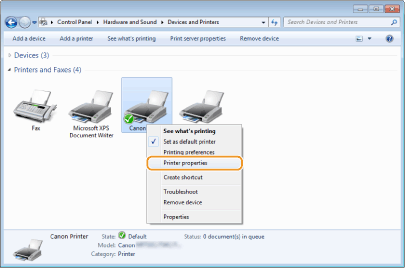
Nhấp chuột phải vào biểu tượng trình điều khiển máy in và nhấp vào [Printer properties (Printer properties)] hoặc [Properties (Properties)].
4
Nhấp vào [Print Test Page (Print Test Page)] trong thẻ [General (General)].
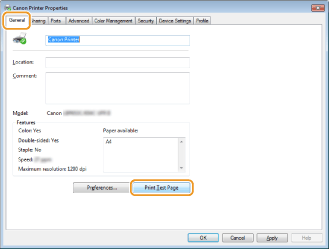
Trang thử nghiệm được in.
Kiểm tra Cấu trúc vi xử lý bit
Nếu bạn không chắc máy tính bạn đang chạy Windows 32 bit hay 64 bit, hãy kiểm tra theo các bước sau.
1
Hiển thị [Control Panel (Control Panel)].
Windows 7/Server 2008
[Start (Start)] chọn [Control Panel (Control Panel)].
[Start (Start)]
chọn [Control Panel (Control Panel)].Windows Server 2012
Nhấp chuột phải vào phía góc dưới bên trái của màn hình chọn [Control Panel (Control Panel)].
Nhấp chuột phải vào phía góc dưới bên trái của màn hình
chọn [Control Panel (Control Panel)].Windows 8.1/Server 2012 R2
Nhấp chuột phải vào [Start (Start)] chọn [Control Panel (Control Panel)].
Nhấp chuột phải vào [Start (Start)]
chọn [Control Panel (Control Panel)].Windows 10/Server 2016
Tiếp tục chuyển sang bước 2.
Tiếp tục chuyển sang bước 2.
2
Hiển thị [System (System)].
Windows 7/Server 2008 R2/Server 2012
Nhấp vào [System and Maintenance (System and Maintenance)] hoặc [System and Security (System and Security)] [System (System)].
Nhấp vào [System and Maintenance (System and Maintenance)] hoặc [System and Security (System and Security)]
[System (System)].Windows 10/Server 2016
Nhấp vào [] [Settings (Settings)] [System (System)] chọn [About (About)].
Nhấp vào [
] [Settings (Settings)] [System (System)] chọn [About (About)].Windows Server 2008
Nhấp đúp vào [System (System)].
Nhấp đúp vào [System (System)].
3
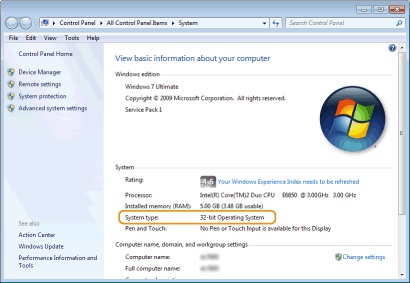
Kiểm tra cấu trúc vi xử lý bit.
Đối với phiên bản 32 bit
[32-bit Operating System (32-bit Operating System)] sẽ hiển thị.
[32-bit Operating System (32-bit Operating System)] sẽ hiển thị.
Đối với phiên bản 64 bit
[64-bit Operating System (64-bit Operating System)] sẽ hiển thị.
[64-bit Operating System (64-bit Operating System)] sẽ hiển thị.
Kiểm tra Tên Máy Tính
1
Hiển thị [Control Panel (Control Panel)].
Windows 7/Server 2008
[Start (Start)] chọn [Control Panel (Control Panel)].
[Start (Start)]
chọn [Control Panel (Control Panel)].Windows Server 2012
Nhấp chuột phải vào phía góc dưới bên trái của màn hình chọn [Control Panel (Control Panel)].
Nhấp chuột phải vào phía góc dưới bên trái của màn hình
chọn [Control Panel (Control Panel)].Windows 8.1/Server 2012 R2
Nhấp chuột phải vào [Start (Start)] chọn [Control Panel (Control Panel)].
Nhấp chuột phải vào [Start (Start)]
chọn [Control Panel (Control Panel)].Windows 10
Nhấp vào [] chọn [Windows System (Windows System)] [Control Panel (Control Panel)].
Nhấp vào [
] chọn [Windows System (Windows System)] [Control Panel (Control Panel)].Windows Server 2016
Nhấp chuột phải vào [] chọn [Control Panel (Control Panel)].
Nhấp chuột phải vào [
] chọn [Control Panel (Control Panel)].2
Hiển thị [System (System)].
Windows 7/10/Server 2008 R2/Server 2012/Server 2016
Nhấp vào [System and Maintenance (System and Maintenance)] hoặc [System and Security (System and Security)] [System (System)].
Nhấp vào [System and Maintenance (System and Maintenance)] hoặc [System and Security (System and Security)]
[System (System)].Windows Server 2008
Nhấp đúp vào [System (System)].
Nhấp đúp vào [System (System)].
3
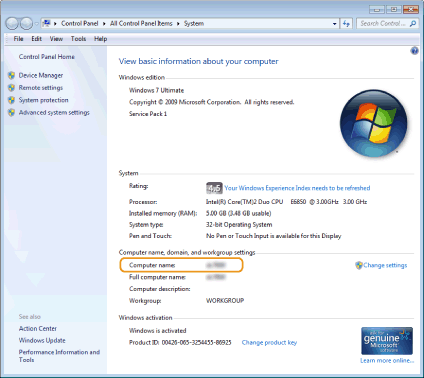
Kiểm tra tên máy tính.
Kiểm tra Cổng Máy In
1
Mở thư mục máy in. Hiển thị Thư Mục Máy In
2
Nhấp chuột phải vào biểu tượng trình điều khiển máy in và nhấp vào [Printer properties (Printer properties)] hoặc [Properties (Properties)].
3
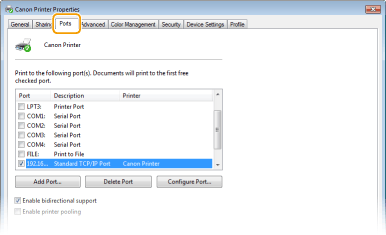
Trong thẻ [Ports (Ports)], kiểm tra để đảm bảo các cổng được chọn một cách chính xác.
 |
Nếu bạn đang sử dụng một kết nối mạng và đã thay đổi địa chỉ IP của máy tínhNếu [Description (Description)] của cổng đã chọn là [Canon MFNP Port (Canon MFNP Port)], và máy và máy tính đang trên cùng mạng con, thì kết nối sẽ được duy trì. Bạn không cần thêm một cổng mới. Nếu là [Standard TCP/IP Port (Standard TCP/IP Port)], bạn phải thêm một cổng mới. Cấu Hình Cổng Máy In
|
Kiểm Tra Truyền Thông Hai Chiều
1
Mở thư mục máy in. Hiển thị Thư Mục Máy In
2
Nhấp chuột phải vào biểu tượng trình điều khiển máy in và nhấp vào [Printer properties (Printer properties)] hoặc [Properties (Properties)].
3
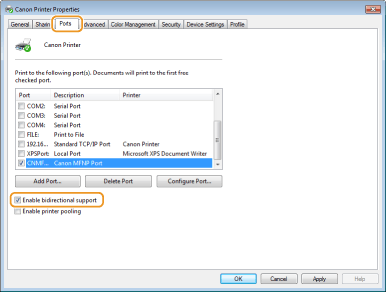
Trong thẻ [Ports (Ports)] hãy đảm bảo rằng hộp kiểm [Enable bidirectional support (Enable bidirectional support)] được chọn.
Kiểm Tra SSID Máy Tính Của Bạn Được Kết Nối
Nếu máy tính của bạn được kết nối vào một mạng LAN không dây, hãy nhấp chuột vào  ,
,  ,
,  , hoặc
  trong khay hệ thống để hiển thị SSID của bộ định tuyến LAN không dây đã kết nối.
, , , hoặc trong khay hệ thống để hiển thị SSID của bộ định tuyến LAN không dây đã kết nối.
Khi in hoặc gửi từ Windows Store App
Windows 8/Server 2012
Hiển thị thanh công cụ ở phía bên phải của màn hình Gõ hoặc nhấp vào [Devices (Devices)] Trình điều khiển bạn đang sử dụng [Print (Print)].
Hiển thị thanh công cụ ở phía bên phải của màn hình
Gõ hoặc nhấp vào [Devices (Devices)] Trình điều khiển bạn đang sử dụng [Print (Print)].Windows 8.1/Server 2012 R2
Hiển thị thanh công cụ ở phía bên phải của màn hình Gõ hoặc nhấp vào [Devices (Devices)] [Print (Print)] Trình điều khiển bạn đang sử dụng [Print (Print)].
Hiển thị thanh công cụ ở phía bên phải của màn hình
Gõ hoặc nhấp vào [Devices (Devices)] [Print (Print)] Trình điều khiển bạn đang sử dụng [Print (Print)].Windows 10
Gõ hoặc nhấp vào [Print (Print)] trên ứng dụng Trình điều khiển bạn đang sử dụng [Print (Print)].
Gõ hoặc nhấp vào [Print (Print)] trên ứng dụng
Trình điều khiển bạn đang sử dụng [Print (Print)].|
|
|
Nếu in tài liệu hoặc gửi fax bằng cách này, bạn chỉ có thể sử dụng một số chức năng giới hạn.
Nếu thông báo [The printer requires your attention. Go to the desktop to take care of it. (The printer requires your attention. Go to the desktop to take care of it.)] được hiển thị, hãy đến màn hình nền và làm theo thao tác vận hành được yêu cầu. Thông báo này hiển thị khi máy được cài đặt hiển thị tên người dùng trong quá trình in tài liệu, gửi fax hoặc các trường hợp tương tự.
|