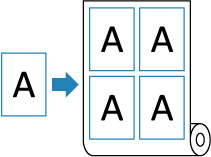
Print a Single Original to Roll Paper Multiple Times Using a Layout
-
Load paper.
-
Load the original on the document platen.
-
Select
 Copy on the HOME screen.
 Note
Note-
If both roll paper and cut sheet are loaded, a screen will appear asking which one to use. Select Copy to roll paper.
-
-
Select
 Repeat copy.
 -
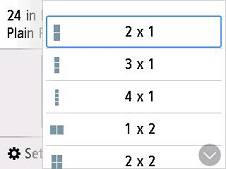
Select Layout on the copy standby screen.
Set the layout of the copy.
-
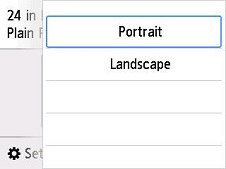
Select Position on the copy standby screen.
Select the orientation.
-
On the Copy standby screen, specify settings as necessary.
For more on the setting items:
-
Press the Black button or the Color button.
The printer starts copying.
Note
-
To cancel copying, press the Stop button.
