
Printing Posters
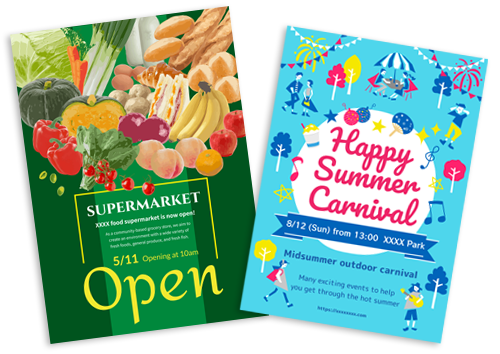
Create and print posters from your favorite photos.
-
In New screen, click Posters.
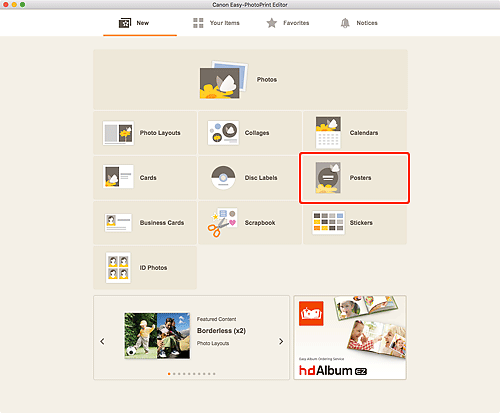
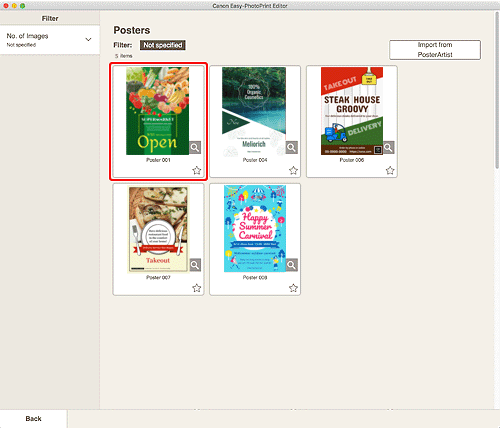
The view switches to the Select template screen.
-
Select the template you want to use.
 Note
Note- To narrow down the templates, set the conditions in the Filter area.
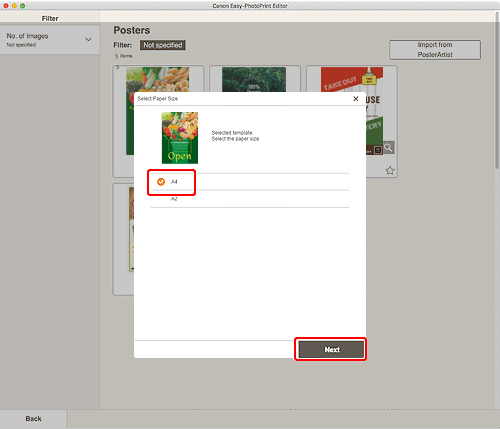
The Select Paper Size screen appears.
-
Select paper size and click Next.
The view switches to the Photo Locations screen.
-
Select the photo(s) you want to use for item.
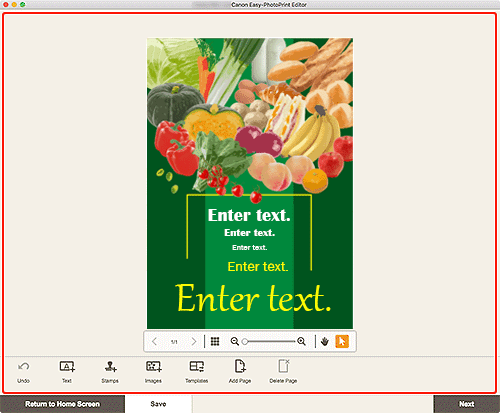
The view switches to the Item edit screen.
-
Edit item according to preference.
 Note
Note- To save the item being edited, click Save.
-
Click Next.
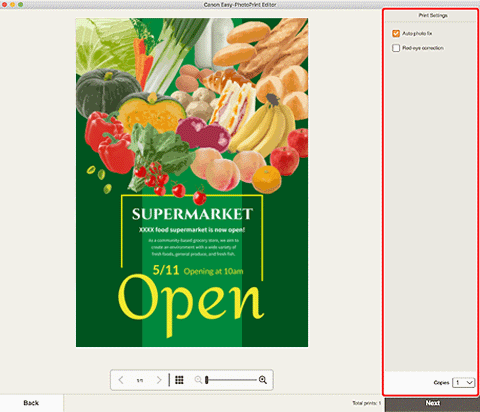
The view switches to the Print Settings screen.
-
Set Auto photo fix, Red-eye correction, and number of copies to print.
-
Click Next.
The Print dialog appears.
-
Specify printer and paper to use, and other settings.
Note- For details on the Print dialog, see Help of macOS.
-
Click Print.
