 Printed Surface Is Smudged/Scratched/Ink Blots/Paper Curl/Paper Is Smudged During Automatic 2-sided Printing
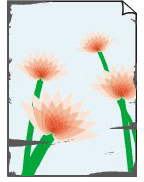
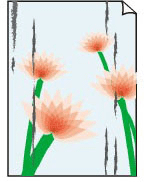
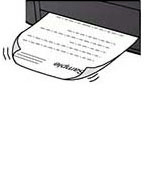


-
Check Check paper and print quality settings.
-
Check Check paper type.
Make sure you are using the right paper for what you are printing. To print data with high color saturation such as photographs or images with dark colors, we recommend that you use Photo Paper Plus Glossy II or other Canon specialty paper.
-
Check Correct curl before loading paper.
When using Photo Paper Plus Semi-gloss, even if the sheet is curled, load one sheet at a time as it is. Rolling this paper in the opposite direction to flatten it may crack the paper surface and reduce the print quality.
We recommend putting unused paper back into the package and storing it flat.
-
Plain Paper:
Turn the paper over and reload it to print on the other side.
-
Other Paper such as envelope or Hagaki:
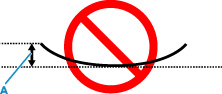
If the paper corners curl more than 0.1 in. / 3 mm (A) in height, the paper may smudge or may not feed properly. Follow the instructions below to correct the paper curl.
-
Roll up paper in opposite direction to paper curl as shown below.

-
Check that paper is now flat.
We recommend printing curl-corrected paper one sheet at a time.
-
 Note
Note-
Depending on paper type, the paper may smudge or may not feed properly even if it is not curled inward. Follow the instructions below to curl the paper outward up to 0.1 in. / 3 mm (C) in height before printing. This may improve the print result.
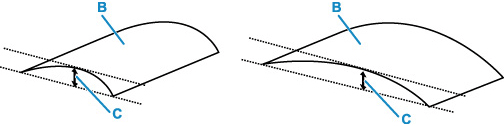
(B) Print side
We recommend feeding paper that has been curled outward one sheet at a time.
-
-
Check Set printer to prevent paper abrasion.
Adjusting the setting to prevent paper abrasion will widen the clearance between the print head and the paper. If you notice abrasion even with the media type set correctly to match the paper, set the printer to prevent paper abrasion using the operation panel or the computer.
This may reduce the print speed.
* Once you have finished printing, undo this setting. Otherwise, it will apply to subsequent print jobs.
Press and hold the Stop button on the operation panel until the Alarm lamp flashes 9 times, then release the Stop button and press the Color button. To set the printer to prevent paper abrasion.
Note- To cancel the setting to improve paper abrasion, press and hold the Stop button on the operation panel, and when the Alarm lamp flashes 9 times, press the Black button. Paper abrasion improvement is canceled.
-
Check For plain paper, set the ink smudge reduction.
Some plain paper has paper qualities that make it difficult for ink to fix. When printing on such paper, if you touch the print surface immediately after printing, ink may stick there, or the back side may become dirty when printing on 2-sided printing. Set the waiting time using Remote UI.
-
For Windows:
-
Open Remote UI on the web browser of your device.
-
Select Log in on Remote UI.
Note- If you specify the administrator password, enter the password.
-
Select Printer settings.
-
Select Print settings.
-
Select Reduce plain paper ink smudges.
select the appropriate setting for Reduce plain paper ink smudges.
-
-
For macOS:
Note- Printing speed may become slower and image quality may deteriorate.
-
-
Check If brightness is set low, increase brightness setting and try printing again.
If you are printing with a low brightness setting on Plain Paper, the paper may absorb too much ink and become wavy, causing paper abrasion.
-
Printing from your computer (Windows)
Check the brightness setting in the Printer Driver.
-
-
Check Is platen glass dirty?
Clean the platen glass.
-
Check Is paper feed roller dirty?
Clean paper feed roller.
Note-
Cleaning the paper feed roller abrades it, so do this only when necessary.
-
-
Check Is inside of printer dirty?
During 2-sided printing, ink may stain the inside of the printer, smudging the printout.
Perform bottom plate cleaning to clean inside of printer.
Note- To prevent staining inside the printer, be sure to set the correct paper size.
-
Check Set longer ink drying time.
This allows the printed surface to dry, preventing smudges and scratches.
-
For Windows:
Set the waiting time using Remote UI.
-
Open Remote UI on the web browser of your device.
-
Select Log in on Remote UI.
Note- If you specify the administrator password, enter the password.
-
Select Printer settings.
-
Select Ink drying wait time.
-
-
For macOS:
Set the waiting time using Remote UI.
-
