Changing the Print Head Height
The print head height setting affects printing quality.
Specifying a low print head height makes images clearer and enhances printing quality but may cause paper to rub against the print head.
On the other hand, specifying a high print head height will prevent paper from rubbing against the print head but may reduce the printing quality.
 Important
- Paper rubbing against or becoming caught on the print head may jam or result in printed documents that are soiled.
 Note
Note
-
Raise or lower print head, depending on nature of the problem.
-
In the Overview screen, select the paper setting display area.
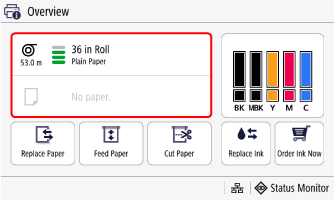
-
Select Paper Settings.
-
Select Advanced Paper Settings.
-
Select Paper Thickness (Head Height).
-
Select Manual.
-
Drag slider to set paper thickness (head height) and select Apply.
Note-
If set to Auto, the height of the print head when printing is automatically adjusted to an appropriate height according to the temperature and humidity where being used. You can check the setting value for the previous time printing with Automatically Applied Values.
- If set to Manual, printing is carried out with the setting value selected here.
- Depending on the type of paper, some setting values may not be available.
-
