 Printer Keeps Ejecting the Roll Paper

If you load roll paper that has a large amount of slack when sheets are selected in the Overview screen on the touch screen, the printer may recognize the roll paper as sheets.
In this case, selecting Remove paper on Cut Sheet Menu may allow the printer to keep ejecting the paper.
Check the paper feed settings on the printer.
After roll ejection stops, follow these steps to reload the roll.
-
Push release lever back.
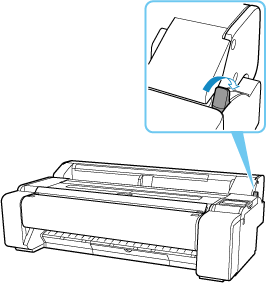
-
Positioning your hands as shown, open roll paper cover.
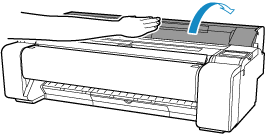
-
Using both hands, rotate the roll holder toward the back to rewind the roll.
At this time, ensure that both ends of the roll are rewound evenly.
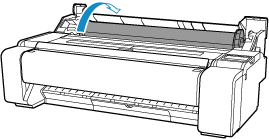
-
Holding it at the positions indicated, close roll paper cover.
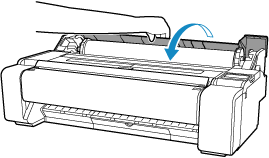
-
Pull release lever forward.
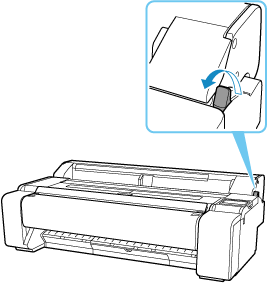
-
Load roll.
Ensure that you operate the touch screen before loading the roll.
