 Cannot Proceed Beyond Printer Connection Screen (Cannot Find Printer Connected via USB)

If you cannot proceed past the Printer Connection screen, check the following items.
-
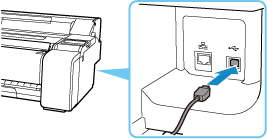
Check 1 Make sure USB cable is securely plugged in to printer and computer.
Connect the printer and the computer using a USB cable as the illustration below. The USB port is located at the right side of the printer.
Check the items below only if you cannot proceed beyond the Printer Connection screen.
-
Check 2 Follow procedure below to connect printer and computer again.
 Important
-
For macOS, make sure the lock icon is on the lower left of the Printers & Scanners screen.
If the
 icon (locked) is displayed, click the icon to unlock. (The administrator name and the password are necessary to unlock.)
-
Turn off printer.
-
Unplug USB cable from printer and computer and connect it again.
-
Turn on printer.
-
-
Check 3 If you cannot resolve problem, follow procedure below to reinstall printer driver.
-
Exit setup.
-
Turn off printer.
-
Restart computer.
-
Make sure you have no application software running.
-
