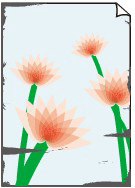
 The edges of the paper are dirty

-
Check 1 Are you printing with minimal margins, borderless, or on small size paper?
When printing with minimal margins, borderless, or on small size paper, the platen may become dirty.
Clean the platen.
-
Check 2 Does the paper loaded on the printer match the media type selected in the printer driver?
The platen may become dirty if the loaded paper does not match the settings. We recommend that you clean the platen before printing again.
When printing with the media type specified in the printer driver, load the specified media type in the printer.
When printing with the media type loaded in the printer, specify the media type in the printer driver.
- Printing with Easy Setup (Windows)
- Printing with Easy Setup (macOS)
 Note
Note-
When Auto (Use Printer Settings) is selected for the media type, printing is performed with the media type loaded in the printer.
-
Click Get Information to reflect the paper information set in the printer to the printer driver.
-
Check 3 When loading paper in the printer, is the media loaded the same as the media type selected on the touch screen?
The platen may become dirty if the loaded paper does not match the settings. We recommend that you clean the platen before printing again.
Set the correct media type on the touch screen.
-
Check 4 Correct curl before loading paper.
We recommend putting unused paper back into the package and storing it flat.
-
Plain Paper:
Turn the paper over and reload it to print on the other side.
-
Such as Envelopes and Medicine Envelopes:
For details, see Loading Envelopes or Medicine Envelopes into the Printer.
-
Other Paper such as Postcards:
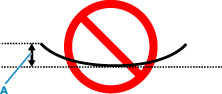
If the paper corners curl more than 0.1 in. / 3 mm (A) in height, the paper may smudge or may not feed properly. Follow the instructions below to correct the paper curl.
-
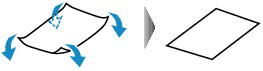
Roll up paper in opposite direction to paper curl as shown below.
-
Check that paper is now flat.
We recommend printing curl-corrected paper one sheet at a time.
-
Note-
Depending on paper type, the paper may smudge or may not feed properly even if it is not curled inward. Follow the instructions below to curl the paper outward up to 0.1 in. / 3 mm (C) in height before printing. This may improve the print result.
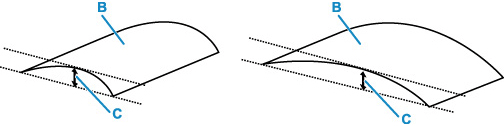
(B) Print side
We recommend feeding paper that has been curled outward one sheet at a time.
-
-
Check 5 Is the paper creased or curled?
Straighten out the wrinkles or curls and reload the paper.
-
Check 6 In the touch screen menu, is Cut-dust reduction in Advanced paper settings set to ON?
A cut dust reduction line is printed at the paper cut position when Cut-dust reduction is set to ON.
If cutting dust reduction is not required, set Cut-dust reduction to OFF.
-
Check 7 Is the ejection guide dirty?
Clean the ejection guide.
-
Check 8 Are the margins of the rolls narrow?
Narrow margins can cause the leading edge of the paper to curl easily, and the raised paper may rub against the head after the ink has landed on it. Make the margins wide.
-
Check 9 If you are using plain paper, changing the settings from the printer driver may improve the print results.
-
For the Easy Settings
Set Print Target to Photo (Color) or Poster.
-
For the Advanced Settings
Select Image in Print Priority.
-
-
Check 10 If you are using rolls, are you using the recommended paper and recommended environment?
Using rolls or environments other than those recommended, may result in increased curl and rubbing of the print head. Use the recommended paper and recommended environment.
-
Check 11 Set the setting to prevent paper rubbing.
Adjusting the setting to prevent paper abrasion will widen the clearance between the print head and the paper. If you notice abrasion even with the media type set correctly to match the paper, set the printer to prevent paper abrasion using the operation panel or the computer.
This may reduce the print speed.
* Once you have finished printing, undo this setting. Otherwise, it will apply to subsequent print jobs.
-
From operation panel
Select
 (Setup) on HOME screen > Printer settings > Print settings in this order, and then set Prevent paper abrasion to ON.
-
-
Check 12 Is the inside of the printer dirty?
During printing, ink may stain the inside of the printer, smudging the printout.
Perform bottom plate cleaning to clean inside of printer.
Note-
To prevent staining inside the printer, be sure to set the correct paper size.
-
