Loading Envelopes or Medicine Envelopes into the Printer
Load envelopes or medicine envelopes into the printer.
The address is automatically rotated and printed according to the envelope's direction by specifying with the printer driver properly.
 Important
-
Before loading paper, check that the paper is compatible with the printer.
-
Prepare envelopes or medicine envelopes.
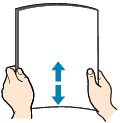
Align the edges of paper. If paper is curled, flatten it.
-
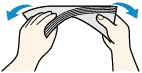
Loosen the stiff portions of the corners. If paper is curled, hold the opposite corners and gently twist them in the opposite direction.
-
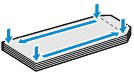
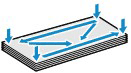
Press down on all four corners and edges of paper to flatten them.
-
If the corner of the envelope flap is folded, flatten it.
-
Use a pen to press the leading edge in the inserting direction flat and sharpen the crease.

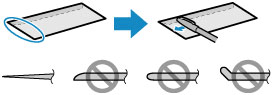
The figures above show a side view of the leading edge of the envelope.
Important-
The envelopes may jam in the printer if they are not flat or the edges are not aligned. Make sure that no curl or puff exceeds 0.12 in. (3 mm).
-
For envelopes or medicine envelopes smaller than A4 size, load them one by one.
-
If paper is not fed correctly into the printer despite these instructions, reduce the number of sheets.
-
-
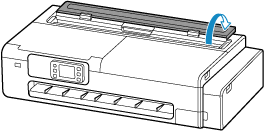
Open the cut sheet feed cover.
-
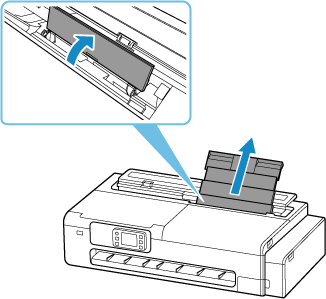
Open the top feed and then pull it upwards.
-
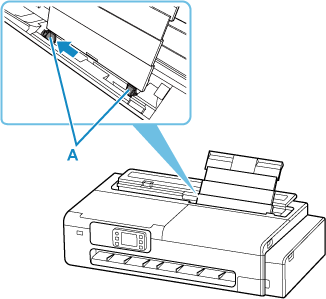
Slide the left and right paper guides (A) to open both paper guides.
-
Load the paper in portrait orientation with the print side facing up.
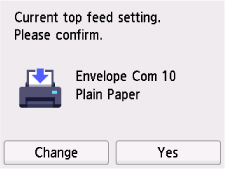
After loading the paper, the paper setting confirmation screen for the top feed appears on the touch screen.
-
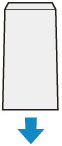
Envelopes with short side open
Load the envelope without folding its flap in portrait orientation with the address side facing up.
-
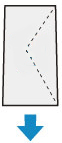
Envelopes
Fold flap of the envelope and load the envelope in portrait orientation with the address side facing up.
-
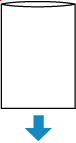
Medicine envelopes
Load medicine envelopes in portrait orientation with the side that opens facing up.
-
-
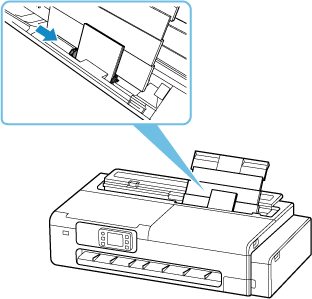
Slide the left and right paper guides to align with both sides of the paper.
 Important
-
Do not slide the paper guides too hard against the paper. The paper may not be fed properly.
-
-
If the page size and type displayed on the touch screen match size and type of the paper loaded in the top feed, select Yes.
If not, select Change to change the settings in accordance with the size and type of the loaded paper.
 Important
-
There are many types of paper available, each best suited to a particular printing use. Each media type has specific preset settings (how ink is used and sprayed, distance from nozzles, etc.), that allow you to print to that type with optimal image quality. The wrong paper settings may cause poor printout color quality or scratches on the printed surface.
-
For details on media types that you can select, see "Paper Information List".
-
When printing on small size paper, the printed documents may remain on the output guide. Remove the remaining printed documents before performing the next printing.
-
