Specifying the Cutting Method for Rolls
 important
-
Eject cut, printing does not resume after a series of jobs have been printed continuously until the roll is cut.
-
Eject cut is the preset selection in Cutting mode for some types of paper. For this paper, we recommend keeping the preset cutting mode.
-
If documents printed using Automatic cut or Eject cut are short, rolls are advanced a specific amount before cutting to prevent problems with cutting and paper ejection. This may create a wider bottom margin, in some cases.
-
Select
 (Setup) on the HOME screen.
 -
Select
 Printer settings.
 -
Select Paper-related settings.
-
Select Advanced paper settings.
-
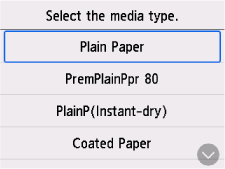
Select the paper type for which you want to change the setting.
-
Select Cutting mode.
-
Select a setting from the menu.
- Automatic cut
- Select this to cut the roll paper automatically with the cutter blade.
- Eject cut
-
Select this to move the cutter by operation panel operation and cut paper. With Automatic cut, the paper drops and may rub against the basket, resulting in damage to the print surface, but you can cut using this method and supporting the paper so that it does not drop to avoid damage to the paper. Also, you can prevent paper that has not dried from dropping by visually checking the ink has dried, and then cutting the paper.
After printing, select Cut paper and cut the roll paper on the cutter blade.
