
Print a File
The available methods for printing files are to print by running Direct Print & Share or to print by creating a shortcut print icon and dropping the files onto the shortcut print icon.
You can print files without displaying the Direct Print & Share screen by printing from a shortcut print icon.
You can print files by following these steps.
Printing by running Direct Print & Share
-
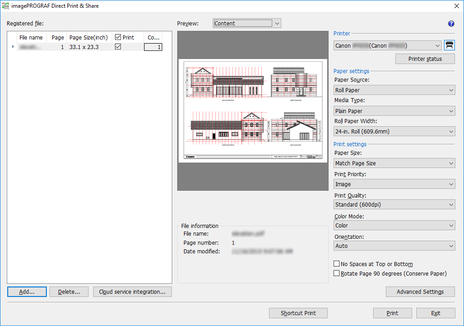
Turn on Print check box for the file you want to print from Registered file list on main screen.
 Note
Note-
By turning on the check box next to Print, you can turn on the check boxes for all of the files. If you turn off the check box, the check boxes for all of the files will be turned off.
-
-
Enter the number of copies to print for each file.
-
Select a printer from the Printer list and make any necessary print settings.
-
Click the Print button.
Printing will begin using your specified printer.
 Important
-
If the page size is out of the range of settable sizes in the custom size settings of the printer driver, you will not be able to preview or print the file or pages. For more details, see Page Size of "Registered file List".
Note
-
When multiple files are printed at the same time, all of the files are printed using the same print settings.
Printing by dropping files onto a shortcut print icon
The shortcut print icon needs to have been created in advance. For details on how to create a shortcut print icon, see "Creating a Shortcut Print Icon".
-
Drop the file onto the shortcut icon.

The print status can be checked using Status Monitor. Furthermore, if you want to stop printing in the middle, you should stop the printing using Status Monitor.
Note-
If Status Monitor does not automatically appear, configure the following settings with Status Monitor.
-
For Status Monitor displaying the Printer Status sheet
From the Option menu, select Display Options, and then on the displayed Display Options dialog box, select the Start when Printing is Started check box and select Display Pop-up Window.
-
For Status Monitor not displaying the Printer Status sheet
Select Enable Status Monitor and Always Display Current Job from the Option menu.
-
-
If Status Monitor is not automatically displayed even after configuring this setting, you should display it from the Start menu or task bar.
-
If Status Monitor does not appear on the task bar when starting Windows, configure the following settings with Status Monitor.
-
Only for Status Monitor displaying the Printer Status sheet
From the Option menu, select Display Options, and then on the displayed Display Options dialog box, select the Start when Windows is Started check box and select Display Icon in Taskbar.
-
-
For details on the Status Monitor, see the Status Monitor help.
The print results are output to a report file.
The report file is created in "\Canon\imagePROGRAF Direct Print & Share\Shortcut Print\Reports" in Documents or My Documents.
The report file name is "ipfdps_sp_report.txt".
When the report file exceeds 10 MB, a single backup file "ipfdps_sp_report_back.txt" is created.
-
Important
-
Do not move or delete the files you are printing until the printing has finished.
Note
-
The number of copies that is printed is one copy.
-
Only PDF, TIFF, JPEG, and HP-GL/2 files can be printed.
-
If you drop a HP-GL/2 file onto an icon for printing PDF, TIFF, and JPEG, it is printed with Print Quality set to Printer default. Furthermore, if you drop a PDF, TIFF, or JPEG file onto an icon for printing HP-GL/2, it is printed using the printer driver default settings when the shortcut print icon was created.
-
If you select multiple files, the order in which files are printed depends on the OS specifications. If you want to print in some particular order, drop the files one at a time.
-
If you have selected multiple files, an error may occur due to limits on the lengths of the selected file names. If this happens, select and drop a smaller number of files.
Printing by dropping files onto an icon for starting with attached print settings
The icon for starting with attached print settings needs to have been created in advance. For details on how to create an icon for starting with attached print settings, see "Creating a Shortcut Print Icon".
-
Drop the file onto the icon for starting with attached print settings.
The Direct Print & Share main screen appears.
-
Enter the number of copies to print for each file.
-
Select a printer from the Printer list and make any necessary print settings.
-
Click the Print button.
Printing will begin using your specified printer.
