
WPS (Router Button) Connection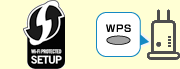
-
Select WPS (Push button) and press the OK button.
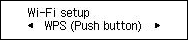
-
Press and hold the WPS button on the wireless router.
 Note
Note- For more on pressing the WPS button, see the wireless router manual.
-
Press the OK button on the printer within 2 minutes.
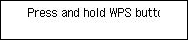
If a different screen appears, see "Troubleshooting."
-
When the screen on the below appears, press the OK button.

If a different screen appears, see "Troubleshooting."
-
Press the Setup button.
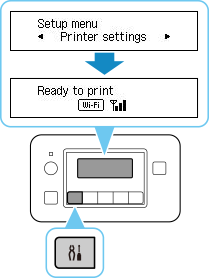
The network connection setup is now complete.
When connection is complete,
 appears on screen.
 -
Proceed with the setup as follows according to your environment.
