
Starting Software from Quick Utility Toolbox
In Quick Utility Toolbox, you can start software or open manuals from the Main Screen.
 Note
Note
- The Management Tool tab does not appear if supported software is not installed.
-
Click
 (Quick Utility Toolbox) in the Dock.
The Main Screen appears.
Note- When the icon is not registered to the Dock, from the Go menu of Finder, select Applications, then double-click the Canon Utilities folder, Quick Utility Toolbox folder, and then Canon Quick Utility Toolbox icon.
-
Select printer you want to use from Printer List.
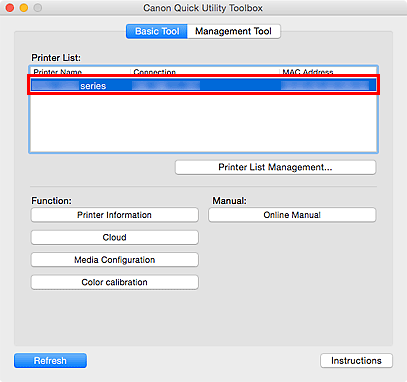
Items corresponding to the selected printer appear in Function.
Note- If the printer you want to use is not displayed in Printer List, click Printer List Management... and add the printer in the displayed Printer Management dialog.
-
Click the item you want to use.
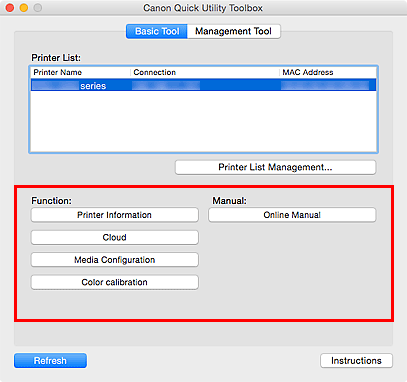
The software starts or manual opens.
Note- Items displayed in Function and the available functions vary depending on the printer selected in Printer List.
