Print with Three-sided Minimal Margins on Roll Paper
|
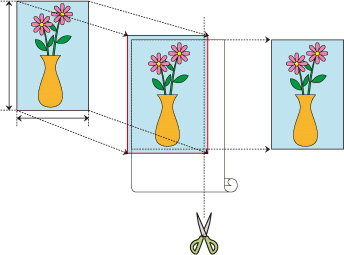
You can combine paper sizes that don't match the roll paper width and print with minimal margins aligned to three sides. However, you need to cut the right side of the paper after printing.
Printing to Match Paper Size
The procedure for minimal margin printing aligned to three sides by enlarging or reducing documents to match paper size is described below.
Open the printer driver setup window
Select the paper source
From the Paper Source list on the Page Setup tab, select Roll Paper.
Select paper roll width
For paper roll width, enter the same value set in the printer under Roll Paper Width.
Select minimal margin printing
Place a checkmark next to the Minimal Margin Printing option.
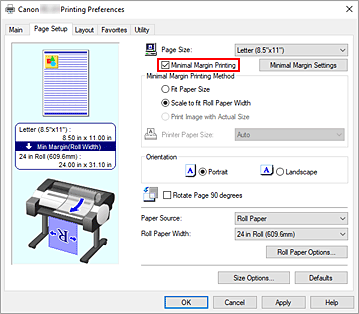
After the Information dialog is displayed, under Roll Paper Width, select the same paper width as that of the paper roll loaded in the printer and click OK.
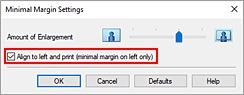
Click Minimal Margin Settings
When the Minimal Margin Settings dialog box is displayed, place a checkmark next to Align to left and print (minimal margin on left only), and then click OK.
Select a method for printing with minimal margins
In the Minimal Margin Printing Method, place a checkmark next to the Fit Paper Size option.
If the size of the document is different from the size of the paper you want to print on, select the paper size you want to print on from Printer Paper Size.Complete the setting process
Click OK.
If you print now, the document will be printed to fit the paper size.Cut the right side of the paper
Cut the margin on the right side of the paper with scissors after printing. Cut slightly to the inside of the margin as the document is enlarged.
To get the document to standard size, it is recommended to take measurements and cut in the correct positions.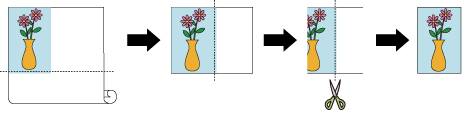
Printing Full-Size
The procedure for printing aligned to three sides in the same size as the original document without enlarging or reducing the size is described below.
Open the printer driver setup window
Select the paper source
From the Paper Source list on the Page Setup tab, select Roll Paper.
Select paper roll width
For paper roll width, enter the same value set in the printer under Roll Paper Width.
Select minimal margin printing
Place a checkmark next to the Minimal Margin Printing option.
After the Information dialog is displayed, under Roll Paper Width, select the same paper width as that of the paper roll loaded in the printer and click OK.
Click Minimal Margin Settings
When the Minimal Margin Settings dialog box is displayed, place a checkmark next to Align to left and print (minimal margin on left only), and then click OK.
Select a method for printing with minimal margins
In the Minimal Margin Printing Method, place a checkmark next to the Print Image with Actual Size option.
Complete the setting process
Click OK.
If you print now, the document will be printed aligned to three sides while retaining the same document size.Cut the right side of the paper
Cut the margin on the right side of the paper with scissors after printing.
To get the document to standard size, it is recommended to take measurements and cut in the correct positions.
 Important
- Depending on paper size, the length/width ratio of the paper may be different from that of the image, making it impossible for the whole image to fit on the paper.
When this happens, crop the image with the application software to match paper size. - When printing with minimal margins on paper with low ink-fixing properties, depending on frequency of use, the cutter unit may come into contact with the paper surface scratching it and causing the paper to be unevenly cut.
You may be able to improve the situation by clicking Specify... on the Main tab and, in the Paper Detailed Settings dialog box, under Drying Time, set Between Pages to a higher value. - If you select a paper type that doesn't support minimal margin printing, you won't be able to print with minimal margins. To see which paper types support minimal margin printing, refer to "Paper Settings List (Roll Paper)."
- If you want to change the margin on the left side of the document,adjust the margin amount from Roll paper minimal margin amount on the printer. Then, perform printing.
For instructions on how to adjust Roll paper minimal margin amount, refer to "Setting the Minimal Margin Amount When Performing the Minimal Margin Printing." - When using Minimal Margin Printing, the print settings are automatically changed to the optimized ones.This may result in having the same print result despite the change in the print settings.
 Note
Note
- When using applications like Microsoft Word which allow you to set margins, set margins to 0 mm.
