Page Setup Tab Description
The Page Setup tab allows you to specify the scaling for enlarging or reducing, set the paper feeding method, and more.
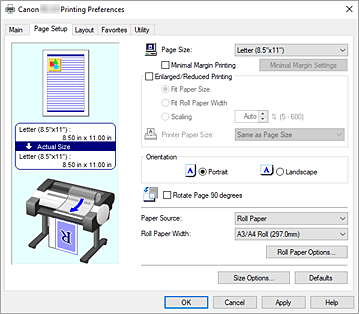
- Settings Preview
-
The paper illustration shows how the original will be laid out on a sheet of paper.
You can check an overall image of the layout.
The printer illustration shows how to load paper to match the printer driver settings.
Check whether the printer is set up correctly by looking at the illustration before you start printing. - Page Size
-
Selects a page size.
Ensure that you select the same page size as you selected within the application.
When you select Custom Size from Custom Paper Size, the Custom Size Settings dialog box appears, and you can specify any vertical and horizontal dimensions for the paper. - Minimal Margin Printing
-
Choose whether to perform minimal margin printing with slight margins on the left and right sides or to print with margins on the top, bottom, left, and right.
In minimal margin printing, originals are enlarged to extend slightly off the paper. If you feel the left and right margins are different sizes, adjust the margin amount from Roll paper minimal margin amount on the printer. Then, perform printing.
For instructions on how to adjust Roll paper minimal margin amount, refer to "Setting the Minimal Margin Amount When Performing the Minimal Margin Printing." Important
- When Top Feed is selected for Paper Source, Minimal Margin Printing is grayed out and cannot be set.
- Minimal Margin Settings
-
Select Minimal Margin Printing to enable it for clicking.
Open the Minimal Margin Settings dialog box, so that you can adjust Amount of Enlargement. - Minimal Margin Printing Method
-
This appears when you select Minimal Margin Printing.
Set the minimal margin printing method.- Fit Paper Size
- Enlarge or reduce the document to match the size of the paper to be printed, and then print the document.
- Scale to fit Roll Paper Width
-
You can enlarge or reduce the document to match the roll paper width and then print the document.
When you select this radio button, the Information dialog box appears, and you can select Roll Paper Width. - Print Image with Actual Size
- Prints the document at its actual size.
- Printer Paper Size
-
When you select Fit Paper Size, you can specify the setting.
Select the size of the paper to be printed.
The list displays the paper sizes that support minimal margin printing.
- Enlarged/Reduced Printing
-
You can enlarge or reduce a document and then print it.
When you select Enlarged/Reduced Printing, you can then set Fit Paper Size, Fit Roll Paper Width, or Scaling.- Fit Paper Size
- Enlarge/reduce the document to match the size of the paper to be printed, and then print the document.
- Fit Roll Paper Width
-
You can enlarge/reduce the document to match the roll paper width and then print the document.
When you select this radio button, the Information dialog box appears, and you can select Roll Paper Width. - Scaling
- Enlarge or reduce the document to a specified scale before printing.
- Printer Paper Size
-
When you select Fit Paper Size, or Scaling, you can specify the setting.
Select the size of the paper to be printed.
- Orientation
-
Selects the printing orientation.
If the application used to create your document has a similar function, select the same orientation that you selected in that application.- Portrait
- Prints the document so that its top and bottom positions are unchanged relative to the paper feed direction. This is the default setting.
- Landscape
- Prints the document by rotating it 90 degrees relative to the paper feed direction.
- Rotate Page 90 degrees
-
Rotate the long edge of the document 90 degrees, match it to the width of the roll paper, and then print the document.
When you print a portrait document onto roll paper, you can save paper by rotating the document 90 degrees and print the document horizontally relative to the paper. - Paper Source
-
Shows the source from which paper is supplied.
You may be able to switch the paper source with the printer driver.- Roll Paper
- Feeds paper using roll paper.
- Top Feed
- Feeds paper using the cut sheet.
Important- Depending on the media type and size, the Paper Source settings that can be selected may differ.
- Roll Paper Width
-
Select the roll paper width.
Select the width that matches the width of the roll paper loaded in the printer. - Roll Paper Options...
-
Displays the Roll Paper Options dialog box.
You can specify banner printing, and other settings for printing on roll paper. - Size Options...
-
Displays the Paper Size Options dialog box.
The Paper Size Options dialog box allows you to create and register any user-defined paper.
Custom Size Settings dialog box (Paper Size)
This dialog box allows you to specify the size (width and height) of the custom paper.
- Paper Size
- Specifies the Width and the Height of the custom paper. Measurement is shown according to the units specified in Units.
- Units
- Select the unit for entering a user-defined paper size.
Minimal Margin Settings dialog box
Configure the minimal margin printing setting.
- Amount of Enlargement
-
Adjust how much of the document is enlarged during minimal margin printing.
Moving the slider to the right increases the amount of enlargement.
Moving the slider to the left reduces the amount of enlargement and expands the range of the document to print. - Align to left and print (minimal margin on left only)
- If you check this check box, and the width or the length of the output paper size is smaller than the roll width, a margin will be created on the right of the document, and the left side will have minimal margins when printing.
Roll Paper Options dialog box
You can specify settings for printing on roll paper.
- Banner Printing
- Select this check box to print documents with several pages as one continuous document. When you do this, the spaces between the pages will be removed.
Paper Size Options dialog box
You can create and register any user-defined paper. You can then select the defined paper size from Custom Paper Size of Page Size.
- Paper Size List
- The names and sizes of the paper sizes that the printer driver can use are displayed.
- Delete
-
From Paper Size List, you can delete a user-defined paper that a user created.
 Note
Note- Paper deletion is not possible in the following case:
- When a standard paper size of the printer driver is selected
- When an oversized paper size is selected
- When a paper size with a red circle is selected
- Paper deletion is not possible in the following case:
- Custom Paper Size Name
- You can specify the name of a user-defined paper.
- Units
- You can specify the units for the height and width dimensions of the user-defined paper.
- Page Size
-
You can specify the Width and Height settings of the paper.
- Minimal Margin Printing Size
- When you select this check box, you can select a size from the paper sizes that support Minimal Margin Printing.
- Fix the Ratio of the Width to Height
- When you select this check box, you can change the size while keeping the Width and Height ratio.
- Width
- Specify the paper width.
- Height
- Specify the paper height.
Important- Printing may be disabled depending on the size of the specified user-defined media.
For information about printable sizes for user-defined media, see "Paper Sizes."
- Register with the OS
-
Register the set user-defined paper in the OS.
By registering in the OS, any user sharing the use of the printer or PC can use the set user -defined paper. - Add
- You can register a user-defined paper that was set and overwrite the existing user-defined paper.
- Display Series
- You can narrow down the paper sizes to be displayed in Paper Size List.
- Oversize
- When you select this check box, add appropriate margins so that the document contents will not get cut off, and then print the document.
