Types of Printer Network Connections
Wi-Fi Connection
When the power is first turned on after purchasing a printer Easy wireless connect starts automatically (there are some models for which it does not start automatically). Follow the instructions in the manual or on the screen of the printer to download the setup application, and proceed with the work.
-
Easy wireless connect (connecting with the Wireless connect button)
This mode connects using the information for connecting to the wireless router stored on the computer. The connection information of the wireless router is received from the computer/smartphone/tablet, and the printer connects to the wireless router using that connection information.
The printer temporarily establishes a wireless connection with the computer/smartphone/tablet. The computer/smartphone/tablet will be temporarily unable to connect to the Internet while data is transferred with the printer.
In addition, the mode to enter the SSID and encryption key is displayed while the computer is connected by wired LAN with the wireless router or not connected with the wireless router. Confirm the SSID and encryption key of the wireless router to be connected in advance.
-
WPS connection
This mode connects using a button on the wireless router. If the button is labeled with WPS, you can use WPS connection.
There are cases where the button is labeled with a unique button connection mode by the wireless router manufacturer. For details on compatibility with a WPS connection, check the instruction manual of your wireless router.
In a case where connecting using the WPS button is not possible, the cause is likely to be one of the following.
-
Not compatible with the encryption method
Not only the old WEP or TKIP but also WPA3 are not compatible with WPS.
Not compatible with also IEEE802.1X (EAP) and WPA/WPA2/WPA3 Enterprise
Stealth mode is set on the wireless router
MAC address filtering is set on the wireless router
IP address filtering is set on the wireless router
-
-
WPS-PIN connection
This mode connects with a wireless router using the WPS-PIN code of the printer. The connection is established by connecting from the computer or smartphone to the wireless router and then entering the WPS-PIN code shown on the printer
If connecting is not possible, the causes are the same as with WPS.
-
Searching for wireless router and connecting manually
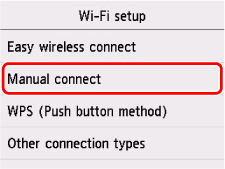
When you manually connect with the printer, a search is made for wireless routers and the nearby wireless routers are displayed. You can click the SSID of the wireless router to which you want to connect, enter the encryption key (network password) in the next screen, and then connect.
-
Directly entering SSID of wireless router and connecting manually
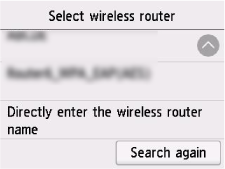
Even if you manually connect with the printer to a wireless router nearby, the SSID may not be displayed. In that case, select "Directly enter the router name" at the very bottom of the search screen, and directly enter the SSID of the wireless router to which you want to connect. When a wireless router is found, the encryption key (network password) input screen appears. When you enter the encryption key (network password), a connection is established.
-
-
Other connection modes
-
IEEE802.1X (EAP), WPA/WPA2/WPA3 Enterprise
This mode registers authentication information (ID, password, etc.) on the authentication server and permits connecting to a wireless router using that registered information. It may not be supported by some consumer printers. If you want to use this connection, ask your network administrator.
-
Connection using button (without WPS label) on wireless router
Connecting using button on wireless router is compatible with WPS button connection, even if that do not have the WPS label, and in some cases WPS is given priority. Refer to the manual of the wireless router to check the compatibility, and then connect.
-
Wireless Direct connection

This mode connects a computer/smartphone/tablet to the printer directly. A wireless router is not required. While there is a connection, you can print from the connected device and, depending on the model, perform scanning and printer management.
The following connections are available in Wireless Direct
-
QR code connection

Select iPhone/iPad or Android in Connect to smartphone of Wireless Direct on the printer to display a QR code. Scan the QR code with the camera app to enable connecting.
-
Manual Connect
To display the information required to connect, select
 (Setup) or Settings on HOME screen > Printer settings > LAN settings > Wireless Direct > Connect to smartphone > Others > Next. Check the SSID and password. On the device to connect, select the corresponding SSID, enter the password, and connect. The password can also be printed on the network setting information.
 -
Easy wireless connect (connecting with the Wireless connect button)
In Easy wireless connect, Wireless Direct connections including AP mode are supported.
 Important
- If a computer or other device connected to the Internet via a wireless router is connected to a printer by Wireless Direct, the connection with the wireless router is disconnected. When this happens, the connection may be automatically switched to a mobile data communication line depending on your device. Note that a charge may be incurred depending on your subscription details if your device connects to the Internet using mobile data communications.
-
Wireless Direct mode compatible with Wi-Fi Direct
-
It is compatible with Wi-Fi Direct.
-
AP mode
-
This is called Wireless Direct mode in the manual. It is not compatible with Wi-Fi Direct.
There are two types of printer wireless direct connections.
Wired LAN connection
With a consumer printer, only either a wired LAN connection or Wi-Fi connection can be enabled. The connection method set last will be enabled, and the other one will be disabled.
When the power of the printer is first turned on after purchase, in the case of a printer is connected with a wireless router by an Ethernet cable, it will take about 20 seconds automatically to recognize the connection and enable wired LAN. If it is not recognized automatically, set [Wired LAN] to [Enable] manually.
