Check the SSID and Encryption Key of the Wireless Router Connected to Your Computer or Smartphone
Checking from Your wireless router (Recommended)
Check the SSID and password written on the bottom, back, sticker, etc. of your wireless router.
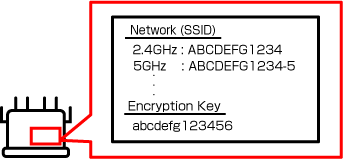
 Important
- Some wireless routers operate in two frequency bands: 2.4 GHz and 5 GHz (6 GHz). If your printer does not support 5 GHz (6 GHz), connect to the 2.4 GHz SSID. Check the frequency band in the Specifications for printer compatibility.
Checking from Your Smartphone/Tablet
 Note
Note
- The procedures are subject to change or the password may not be displayed due to changes in the OS specifications or depending on your device.
-
If you are using iOS/iPadOS, you can scan text and automatically enter it.
-
Procedure
Tap the text box > Tap Scan Text > The camera starts at the bottom of the screen > Frame the text into the camera > Tap insert.
-
For iOS/iPadOS
The following is an example for iOS 16 or later.
-
Open Wi-Fi settings screen.
-
Tap the
 button next to the network you want to connect to.
The network name is the SSID.
-
Tap Password.
-
Unlock device.
The password appears.
-
Tap Copy.
For Android
-
Open Wi-Fi settings screen.
-
Tap the gear icon on the connected Wi-Fi.
The Wi-Fi name is the SSID.
-
Tap Share.
-
Unlock device.
The password appears.
Checking from Your Computer
Note
- The procedures are subject to change or the password may not be displayed due to changes in the OS specifications or depending on your device.
For Windows
The following is an example for Windows 10.
-
Open Settings.
-
Click Network & Internet, and then click Change adapter options under Advanced network settings.
-
Double-click the network you are connected to.
-
Click Wireless Properties.
-
Check SSID on the Connection tab, and then check the password in Network security key on the Security tab.
For macOS
The following is an example for macOS Ventura 13.
-
Click the Apple menu, and then click System Settings.
-
Click Network in the sidebar, and then click Wi-Fi on the right.
-
Scroll down and click Advanced to display a list of networks you have connected to.
-
Click the More button next to the network name, and then select Copy Password.
-
Paste the password into a text editor or the like to check it.
