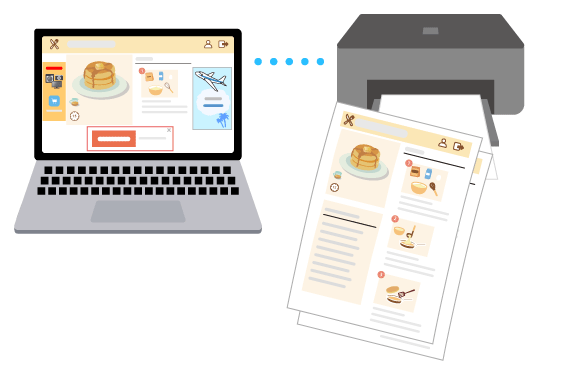
Clean Layout Without Ads or Unnecessary Elements
Web Print Optimizer is a printing feature that uses AI to analyze the content of web pages, remove ads and other unnecessary elements, and optimize the layout for easy reading based on the type of web page being printed.
It is available on both PCs (Windows) and smartphones/tablets (Android, iOS, and iPadOS).
 Recommended Use
-
Remove ads and other unnecessary elements, and print only the essential content.
-
Let AI optimize the layout for easy reading based on the page type.
-
Cut costs by reducing unnecessary printing.
Note: Depending on the structure, design, or content of the web page, the print result may not match the intended layout, or the number of printed pages may increase.
Note: The screens and available functions vary depending on the model.
Note: The PC version of Web Print Optimizer is available on Windows only.
The following describes what you can do with Web Print Optimizer.
Refer to the following for preparations.
Windows
 Preparation
The following preparations are required to use the Windows version of Web Print Optimizer.
-
STEP
1Open Canon PRINT and install the latest printer driver.
Note: When installing the printer driver, connect your computer and the printer over a network.
If you do not have the app, download and install it from here.
Select Add Printer in the home screen of Canon PRINT. Follow the on-screen instructions to install the software and complete the setup.
If the User Account Control screen appears during installation, select Yes. If you are using a standard user account, you will need to enter the user name and password of an administrator.
-
STEP
2Installing Web Print Optimizer (Windows)

What You Can Do with Web Print Optimizer
Note: The web page shown is for illustrative purposes only. Actual web page content and print results may vary.
-
STEP
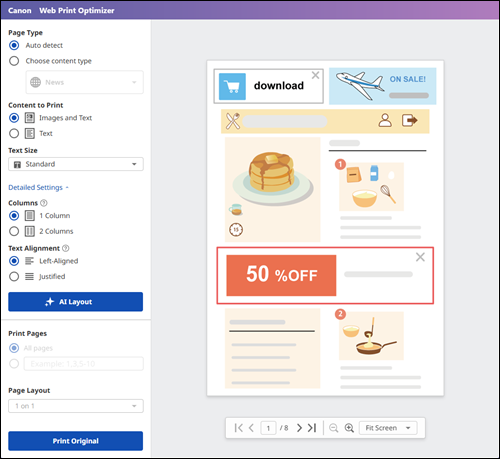
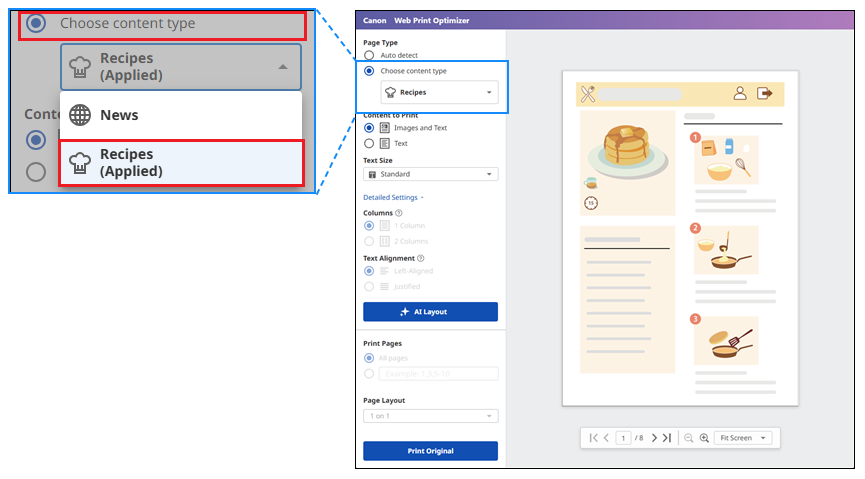
1AI identifies ads and unnecessary elements.
Ads and unnecessary elements are removed, leaving only the essential content.
-
STEP
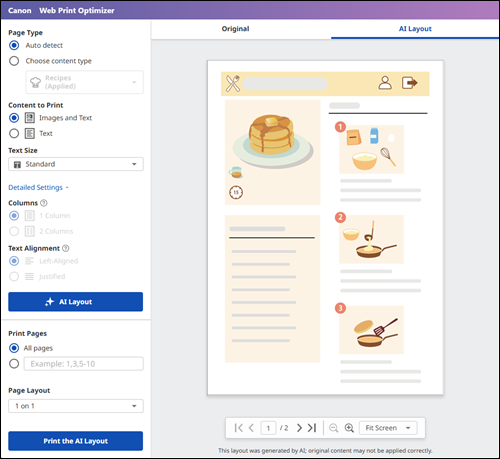
2AI optimizes the layout based on the characteristics of the web page.
The layout is tailored to the page structure, such as that of news pages and recipe sites.
Some restrictions apply when using this feature.
For details, see Notes on Usage (Web Print Optimizer (Windows)).
For detailed instructions, see Using Web Print Optimizer (Windows).
Android/iOS/iPadOS
Preparation
-
STEP
1Open
 Canon PRINT.
Download Canon PRINT from here.
-
STEP
2Tap the icon of your printer to open Printer Details, and then enable Printer Add-ons.
 Tips
Tips- If your printer is not registered, register the printer from Add/Switch.
Procedure (Android/iOS/iPadOS)
Note: The following descriptions are based on the screens displayed when using Safari on iOS 26. The screens and steps may vary depending on your environment.
Note: The web page shown is for illustrative purposes only. Actual web page content and print results are different from those shown.
-
STEP
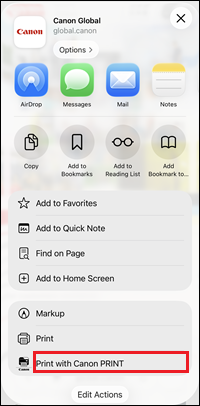
1Open the web page in Canon PRINT.
Display the web page you want to print in the browser, and then tap the Share icon (Share menu) on the browser.
Then select Print with Canon PRINT to open the page in Canon PRINT. -
STEP
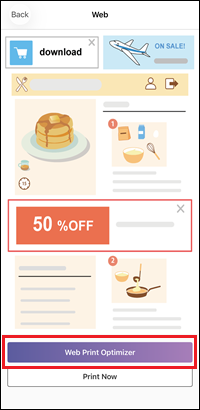
2Generate the layout.
Tap the Web Print Optimizer button, and then select the paper size.
A layout with ads and unnecessary elements removed is automatically generated.
-
STEP
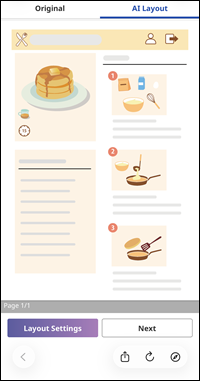
3Print.
Check the generated layout and print.
Some restrictions apply when using this feature.
For details, see Notes on Usage (Web Print Optimizer (Android / iOS / iPadOS)).
Try it now