
Using Web Print Optimizer (Windows)
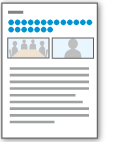
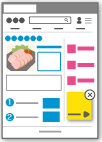
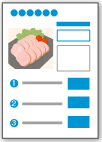
When you use Web Print Optimizer, advertisements and other unnecessary parts are removed, and the layout is automatically adjusted to a more readable format for web pages such as news and recipes. Because you can print using the adjusted layout, you can review the content in an organized form.

|

|
|
|
|
|
The following instructions are shown using Microsoft Edge as an example.
Open the web page and display the print settings screen
Click Print from the ... menu in the browser to display the print settings screen.
Select the printer for Canon Print Assistant
On the settings screen that appears, select "Canon XXXX series (Canon Print Assistant)" for your printer ("XXXX" is the model name).
Display Web Print Optimizer
Click Print to display Web Print Optimizer.
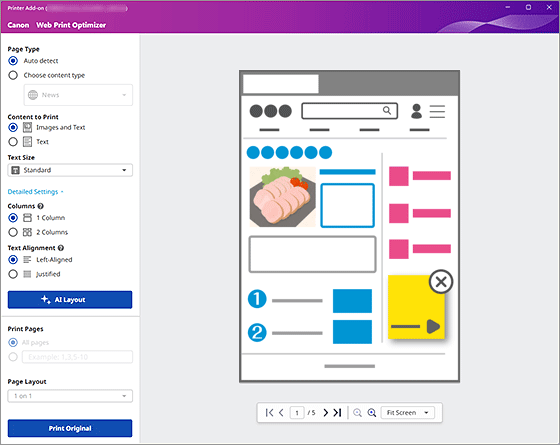
 Important
- This appears when Web Print Optimizer is enabled. For how to check whether it is enabled or disabled, refer to "Installing Web Print Optimizer (Windows)."
Select Auto detect for Page Type
AI automatically identifies the type of web page.
To specify it manually, click Choose content type and select the type of web page from the list.
 Note
Note- If you select News, you can set Columns and Text Alignment.
Optimize the layout
Click AI Layout to display the optimal layout generated by AI.
Click the Original tab in the preview to check the original layout.
Note- The font may change when a layout is generated by AI.
- You cannot make changes to a layout generated by AI.
Select pages to print
Specify All pages or the page numbers to print.
Note- When the Original tab is displayed, Print Pages and Page Layout cannot be set.
Print
Click Print the AI Layout to start printing.
Note- To print with the original layout, click Print Original.
