
Printing Template Forms Such As Lined Paper or Graph Paper
You can print a template form such as lined paper, graph paper, or checklist, etc. on A4, B5, or Letter-sized plain paper.

Printable template forms
The following templates are available:
-
Notebook paper
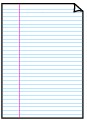
You can select three line spacing formats.
Setting on the LCD:
-
Notebook paper 1: 8 mm spacing
-
Notebook paper 2: 7 mm spacing
-
Notebook paper 3: 6 mm spacing
 Note
Note-
You cannot print Notebook paper on B5 sized paper.
-
-
Graph paper
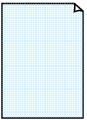
You can select two square sizes.
Setting on the LCD:
-
Graph paper 1: Graph 5 mm
-
Graph paper 2: Graph 3 mm
Note-
You cannot print Graph paper on B5 sized paper.
-
-
Checklist
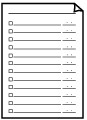
You can print a notepad with checkboxes.
Setting on the LCD:
Checklist
-
Staff paper
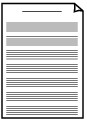
You can print staff paper with 10 or 12 staves.
Setting on the LCD:
-
Staff paper 1: 10 staves
-
Staff paper 2: 12 staves
-
-
Handwriting paper
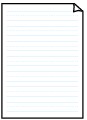
You can print handwriting paper.
Setting on the LCD:
Handwriting paper
-
Weekly schedule
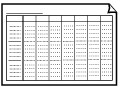
You can print a weekly schedule form.
Setting on the LCD:
Weekly schedule
-
Monthly schedule
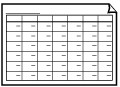
You can print a monthly schedule form.
Setting on the LCD:
Monthly schedule
Printing template forms
Print template form following the procedure below.
-
Press the Setup button.
The Setup menu screen is displayed.
-
Use the

 button to select Template print, then press the OK button.
 -
Use the
button to select the template you want to print, then press the OK button. -
Use the
button to specify the paper size, then press the OK button.Note-
The * (asterisk) on the LCD indicates the current setting.
-
-
Make sure that Plain paper is selected, then press the OK button.
Note-
If any media type other than Plain paper is selected on the LCD, select Plain paper using the
button.
-
-
Use the
(-) (+) button or the Numeric buttons to specify the number of copies. -
Press the OK button to start printing.
Note-
You can also press the Color button or Black button to start printing.
-
