LCD and Operation Panel
The HOME screen on the LCD appears when the printer is turned on.
HOME Screen
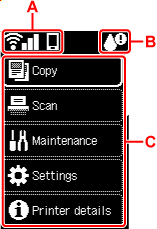
- A: Network
-
Displays the current network status.
The icon differs depending on the network of use or the network status.
 Wi-Fi is enabled and the printer is connected to the wireless router.
 Note
Note-
Depending on the signal state, the icon will change.
(Signal strength: 81 % or more): You can use the printer over Wi-Fi without any problems. (Signal strength: 51 % or more): The problem such as the printer cannot print may occur according to the network status. We recommend placing the printer near the wireless router.
 (Signal strength: 50 % or less): The problem such as the printer cannot print may occur. Place the printer near the wireless router.
 Wi-Fi is enabled but the printer is not connected to the wireless router.
 Wireless Direct is enabled.
 Network is disabled.
 -
- B: Ink information
-
A symbol appears if there is any information about the remaining ink level.
 The ink is running low. Prepare a new ink tank.
 Ink has run out. Replace the ink tank with a new ink tank.
- C: Basic menu
-
Select each item when you want to use the basic functions of a printer, maintain a printer, or change each setting.
Basic Operation of the Operation Panel
To determine a menu or setting items, select an 
 button and press the OK button.