Aligning the Print Head Manually
Try aligning the print head manually after automatic print head alignment if printing results are not as expected, as when printed ruled lines are misaligned.
You need to prepare: two sheets of A4 or Letter-sized plain paper
-
Load two sheets of A4 or Letter-sized plain paper in the cassette.
-
Select Maintenance on the HOME screen.
-
Select Print Head Alignment - Manual.
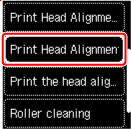
The confirmation screen will appear.
 Note
Note-
To print and check the current head position alignment values, select Print the head alignment value.
-
-
Select Yes.
-
Press the OK button.
The print head alignment sheet will be printed.
-
When Did the patterns print correctly? appears, make sure pattern was printed correctly, and if so, select Yes.
-
Check message and select OK.
The input screen for head position alignment values is displayed.
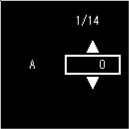
-
Examine first patterns. In column A, find pattern in which streaks are least noticeable, select the number of that pattern, and then press the OK button.
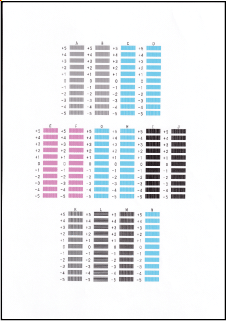 Note
Note-
If all patterns look different, choose the pattern in which vertical stripes are least noticeable.
Subtle vertical stripes

Noticeable vertical stripes

-
If all patterns look different, choose the pattern in which horizontal streaks are least noticeable.
Subtle horizontal streaks

Noticeable horizontal streaks

-
-
Repeat these steps until you have finished entering pattern numbers for columns B to N.
-
Check message and press the OK button.
The second set of patterns is printed.
-
Examine the second print head position adjustment pattern, select the number of a pattern in which stripes are least noticeable in column O, and press the OK button.
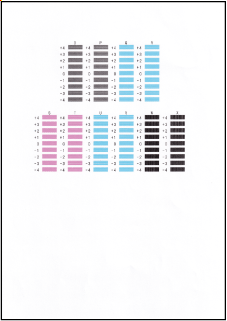 Note
Note-
If all patterns look different, choose the pattern in which vertical stripes are least noticeable.
Subtle vertical stripes
Noticeable vertical stripes
-
-
Repeat these steps until you have finished entering pattern numbers for columns P to X.
-
When completion message appears, select OK.
