Changing the Original Feeding Speed
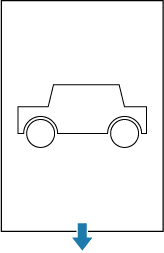
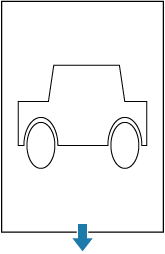
If the scan result for copying or scanning does not match the aspect ratio of the original, run Adjust Original Feeding Speed and fine-adjust the feeding speed of the original.
| Original | Scan result |
|---|---|
 |
 |
 Important
- A difference in length may occur as a result of the paper type or paper width. It is recommended to make adjustments under actual conditions of use.
- Things to prepare
-
- Original with a precise aspect ratio
- An accurate ruler
-
Use a ruler to check the dimensions of the original.
-
Scan the original, and check the dimensions of the scan result.
Measure the dimensions of the scan result using an image viewer on a PC, etc.
-
In the Home screen, select Menu.
-
Select Adjustment/Maintenance.
-
Select Adjust Scanner Image Quality.
-
Select Adjust Original Feeding Speed.
-
Set the correction value, and select Apply.
If the scan result was shorter than the actual dimensions, set a larger value. If the scan result was longer, a smaller value. The correction value can be changed in increments of 0.01%. To set a value smaller than 0, first enter the value using the numeric keys, then select ± to change the sign.
Important-
Calculate the correction value as follows.
For an original of 60 cm, and a scan result of 60.1 cm: (60 / 60.1 - 1) x 100 = -0.166
This would then be set to the closest 0.01% increment of "-0.17".
-
