Checking for Nozzle Clogging
If printing is faint or affected by banding in different colors, make sure the print head nozzles are clear by printing a test pattern to check the nozzles.
 Important
-
When using cut sheets, do not move the release lever until instructions (guidance) for removing the paper are displayed.
Moving the release lever during printing or maintenance operations will cause the printer to stop.
 Note
Note
-
You can also check for nozzle clogging from your computer.
- Printing a Nozzle Check Pattern (Windows)
- Printing a Nozzle Check Pattern (macOS)
-
By default, nozzles are checked at fixed intervals.
Paper to Prepare
- When using rolls
- An unused roll at least 10.00 in. (254.0 mm) wide
- When using sheets
- 1 sheet of unused paper of at least A4/Letter size
-
Load paper.
-
In the Home screen, select Menu.
-
Select Adjustment/Maintenance.
-
Select Maintenance.
-
Select Print Nozzle Check Pattern.
A confirmation message appears.
-
Select Yes.
The printer now prints a test pattern for checking the nozzles.
-
Check the printing results.
If the horizontal lines are not faint or incomplete, the nozzles are clear.
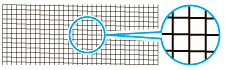
If some sections of the horizontal lines are faint or incomplete, the nozzles for those colors are clogged.
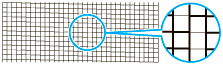
If horizontal lines are faint or incomplete, execute print head cleaning.
