Registering Recipients in Group E-Mail
If you register two or more registered e-mail address to a group e-mail, you can send the same mail successively to all recipients registered to the group e-mail.
-
Select
 Others on the HOME screen.
 -
Select
 Scan.
Scan. -
Select
 Attach to email
 -
Select
 E-mail directly from device.
 -
Select Edit e-mail address book.
-
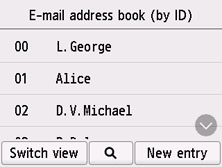
Select Display e-mail address book.
The screen to select an ID number is displayed.
 Note
Note-
If you already registered the recipients, the recipients' name is displayed next to the ID number. If you already registered the group mail,
 and the group name are displayed next to the ID number.
-
-
Select unregistered ID number.
Note-
If you already registered the recipients and they are displayed by name, select Switch view. The registered recipients are displayed by ID number.
-
If you select New entry, an unregistered ID number will be selected in numerical order.
-
-
Select Register group e-mail.
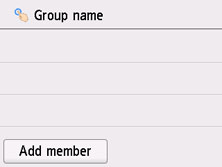
The screen to register the group name and the member of the group is displayed.
-
Tap Group name, and enter the group name.
-
Register the registered recipient as a member of the group e-mail.
-
Select Add member.
-
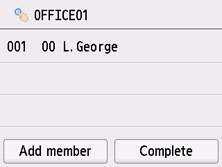
Select recipient to register as group member.
The member to register is displayed on the list.
 Note
Note-
To delete the recipient from the group e-mail, select a recipient that you want to delete from the list. After the confirmation screen is displayed, select Yes to delete the recipient from the group e-mail.
-
-
To add another member, select Add member again.
The address book is displayed.
-
Select recipient to register as group member.
The member to register is displayed on the list.
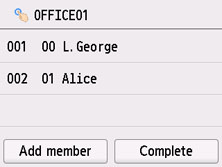
Repeat the procedure to register another member to the same group e-mail.
-
-
Select Complete to finalize registration.
Note-
To register another group, select an unregistered ID number and operate in the same procedure.
-
