Searching Printer by IP Address or Host Name During Setup
 Note
Note
- If you are using macOS 15 or later, you must configure each application to allow device discovery on the local network. Failing to enable device discovery may restrict software functionality or prevent it from starting properly.
For detailed instructions, refer to "Setting Up Local Network Device Discovery."
If the printer cannot be found on the Select Printer screen, search for the printer by an IP address or host name. Click Search By IP Address on the screen which appears by clicking Printer Not Found. The screen to select searching criteria appears.
-
Check printer's IP address or host name.
You can check the IP address or host name set for the printer by displaying it on the touch screen.
Note- If you use the printer in an office, ask the network administrator.
-
Specify searching method.
Select one of the methods below.
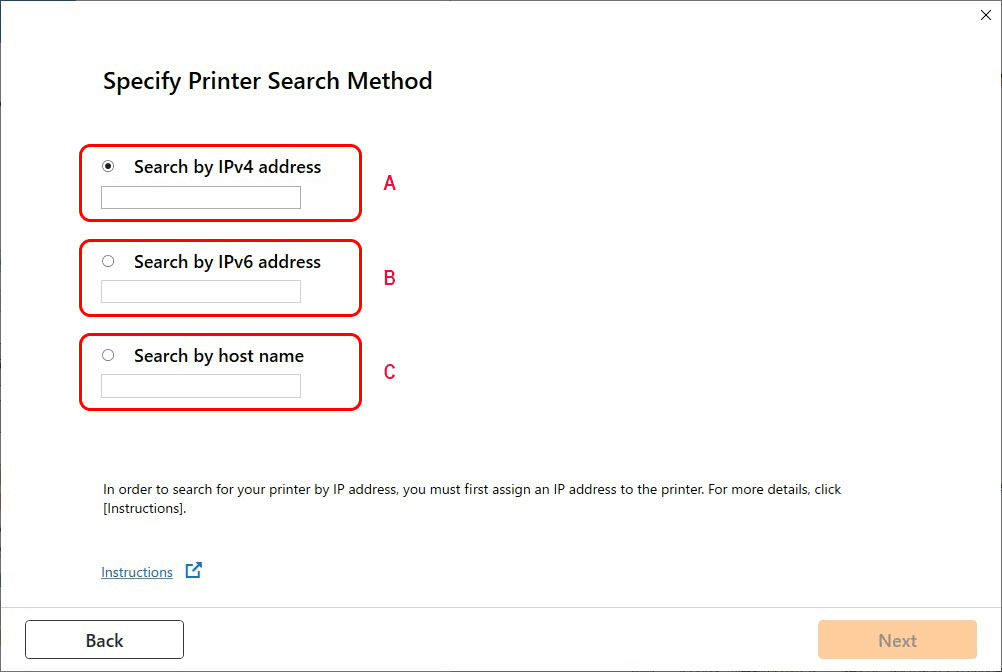
- A: Search by IPv4 address
- Select to search for printers by IPv4 address.
- B: Search by IPv6 address
- Select to search for printers by IPv6 address.
- C: Search by host name
- Select to search for printers by host name. A host name is referred to as LLMNR host name or Bonjour name.
-
Enter IP address or host name and click Next.
Printer search starts.
If an error screen appears:
Resolve the error according to the instruction on the screen.
If the IP address you entered is already used for another device, follow the procedure below to specify printer's IP address.
-
On the HOME screen, select the Network icon.
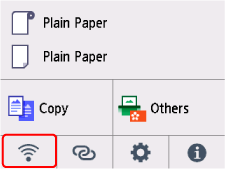
The icon displayed on the button varies depending on the current LAN status.
If you specify the administrator password, enter the password.
-
Select Advanced.
-
Select Yes on displayed screen.
-
Select TCP/IP settings.
-
If you specify IPv4 address:
-
Select IPv4.
-
Select IP address.
-
Select Manual setup.
Selecting Auto setup specifies the IP address automatically.
-
Select Yes on displayed screen.
-
Enter IP address.
-
Select OK.
-
Enter subnet mask.
-
Select OK.
-
Enter default gateway.
-
Select OK.
The IPv4 address has been specified.
-
-
If you specify IPv6 address:
-
Select IPv6.
-
Select Enable/disable IPv6.
-
Select Enable.
The IPv6 address has been specified.
-
 Important
-
If firewall is enabled on the computer, printers on a different subnet may not be detected. Disable firewall.
-
If firewall interferes with printer search:
The operating system installed on your computer and the firewall function of the security software may unintentionally prevent communication for setup. Check if a firewall message appears.
-
If a firewall message appears:
If a firewall message appears warning that Canon software is attempting to access the network, set the security software to allow access.
After allowing the software to access, return to setup and follow the instructions on the screen.
-
If no firewall message appears:
Temporarily disable the firewall and return to setup and follow the instructions on the screen.
After the setup is complete, re-enable the firewall.
Note
- For more on firewall settings of your operating system or security software, see instruction manual or contact its manufacturer.
