Configuration Changes / Display Printer Status Using Web Browser
You can check the printer status and change the printer settings using the web browser on your smartphone, tablet, or computer.
To check the printer status and to change the printer settings, display "Remote UI" on the web browser.
-
 Note : System Requirements
 -
-
Remote UI is a software that enables you to perform operations, which are usually performed on the printer's operation panel, using a Web browser.
-
You can use Remote UI on the following OS and the web browser.
-
macOS device
OS: macOS Big Sur 11.7 or later
Web browser: Safari
-
Windows device
OS: Windows 11/Windows 10/Windows 8.1/Windows 7 SP1 or later
Web browser: Microsoft Edge, Google Chrome, Mozilla Firefox
-
iOS/iPadOS device
OS: iOS 14.0 or later, iPadOS 14.0 or later
Web browser: standard installation browser
-
Android device
OS: Android 8.0 or later
Web browser: standard installation browser
-
-
-
Check that printer is turned on.
-
Launch "Remote UI".
-
For Windows:
-
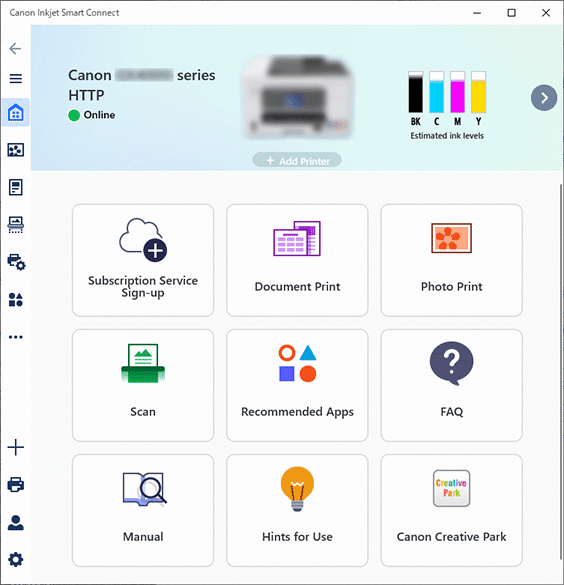
Start the application software
 on the Start menu.
The application software starts up.
-
Note : Downloading the application.
-
-
If the application software
is not installed, download it from the following page and install it on your computer.
-
-
-
Click
 Printer Management icon on the left side of the Home screen and click Device Information at the bottom of the Printer Management menu.
 -
Click Open Remote UI in the lower center of the Device Information screen.

"Remote UI" will be displayed on the web browser on your computer.
-
-
For macOS:
-
Click the application software
on the Dock.The application software starts up.
-
Note : Downloading the application.
-
-
If the application software
is not installed, download it from the following page and install it on your computer.
-
-
-
Click
Printer Management icon on the left side of the Home screen and click Device Information at the bottom of the Printer Management menu. -
Click Open Remote UI in the lower center of the Device Information screen.
-
Note : Regarding the macOS application screen
-
-
See the screen of Windows version above.
-
"Remote UI" will be displayed on the web browser on your computer.
-
-
-
Note : For smartphone or tablet
-
-
You can launch "Remote UI" from your smartphone or tablet by installing the app
 .
.Download it from App Store and Google Play.
-
-
-
If you display Remote UI for the first time on your computer, select For secure communication.
Download the root certificate, and then register it.
-
Note : Regarding the root certificate
-
-
Once you register the root certificate to the web browser on your smartphone, tablet, or computer, this step is not necessary after the next time.
If all settings are set back to the default from the printer's operation panel, download the root certificate again, and then register it.
-
If the root certificate is not registered, a message to warn you that the secure communication is not guaranteed may appear. In that case, ignore the warning and register the root certificate to the web browser.
-
-
-
Select Log in.
The password authentication screen appears.
-
Enter password.
When the password authentication is complete, the menus that can be utilized are displayed on the web browser.
 Important
-
An administrator password is specified at the time of purchase.
-
Some models require to change the initial administrator password when you use Remote UI for the first time. Control your changed password so that you don't forget it.
-
The administrator password consists of alphanumeric uppercase and lowercase. Set the password according to the password and security policies.
-
For details on setting the administrator password, see Setting Password.
-
We recommend changing the initial administrator password.
-
-
Check printer status and change printer settings.
For changeable setting items, see below.
-
When you finish checking printer status and changing printer settings, select Log out.
-
Close web browser.
-
Note : Regarding this web page contains
-
-
This web page contains information about several models. Depending on the specifications of the printer you are using, some of the features described (device functions, connection method, operating procedure and etc.) may not apply. For details about the functions of your printer, see Product Specifications.
-
