
Share Files with Other Users (Google Drive Only)
You can share the files you upload to Google Drive cloud storage with other users.
Set users to share files by following these steps. Set users will be able to view the uploaded files after file uploads are completed.
-
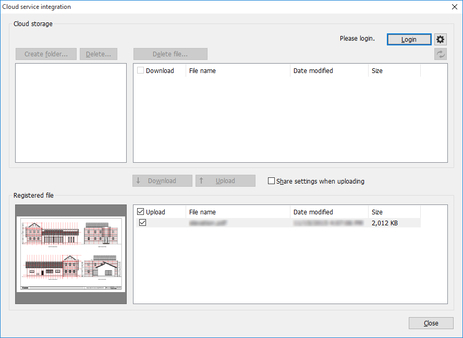
Log into the cloud service. (See "Log into the Cloud Service")
-
Turn on the Share settings when uploading check box.
-
Turn on the Upload check box for the file you want to upload and click the Upload button.
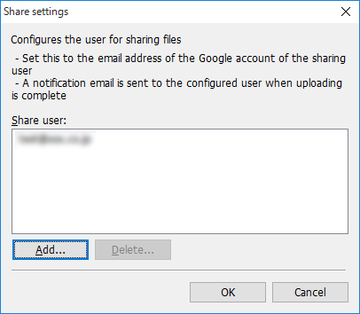
The Share settings dialog box is displayed.
-
Register users with whom you want to share file uploads to the Share user list.
 Note
Note-
If you open the Share settings dialog box, previously registered users will be displayed in the Share user list.
-
If you want to delete a user from the Share user list, select the user that you want to delete and click the Delete button.
-
-
If you want to add a user to share the files with, click the Add button.
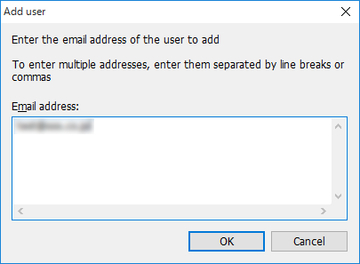
The Add user dialog box will be displayed.
-
Enter the Google account e-mail address for the user with whom you want to share files.
 Note
Note-
It is possible to enter multiple e-mail addresses. When entering more than one e-mail address, separate the e-mail addresses with either a new line or a comma.
-
-
Click the OK button.
The added e-mail addresses will be displayed in the Share user list of the Share settings dialog box.
-
Click the OK button.
The Upload dialog box will be displayed and your uploads will begin.
When uploading completes, e-mail notification will be sent to set users.
