
Log into the Cloud Service
In order to start downloading from or uploading to cloud storage, you must be logged into the cloud service.
You first have to create an account for the cloud service.
For Google Drive
-
Click Cloud service integration button on main screen.
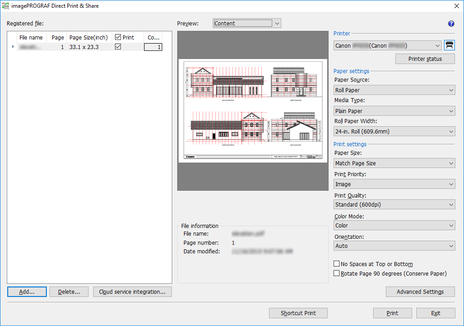
The Cloud service integration dialog box is displayed. (See "Cloud service integration Dialog Box")
-
Click the Login button.
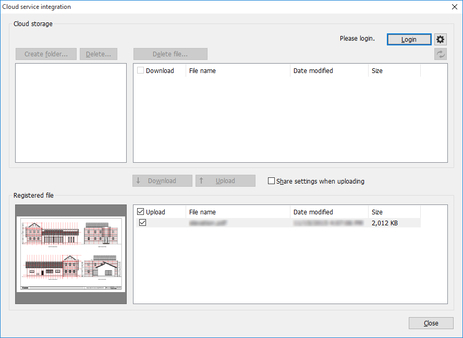
The Cloud storage selection dialog box is displayed.
-
Select Google Drive and click the OK button.
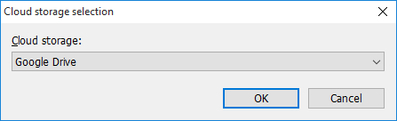
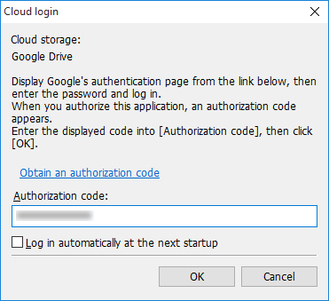
The Cloud login dialog box is displayed.
-
Click Obtain an authorization code.
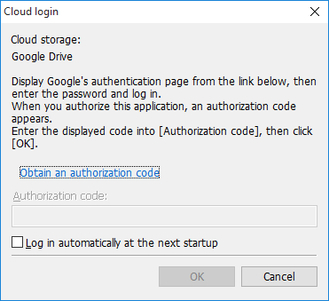
The web browser starts and the Google account login screen is displayed.
-
Log into your Google account.
-
Authorize Google Drive to use your data by following the displayed instructions.
-
Enter the displayed code in Authorization code in the Cloud login dialog box.
 Note
Note-
By turning on the Log in automatically at the next startup check box in the Cloud login dialog box, you can log in without repeating steps 4 to 7 from next time.
-
-
Click the OK button.
Note-
If proxy authentication is required, the Proxy authentication dialog box will be displayed.
Carry out proxy authentication by entering the username and password of the proxy server that was set by Windows.
-
For non-Google Drive
-
Click Cloud service integration button on main screen.
The Cloud service integration dialog box is displayed. (See "Cloud service integration Dialog Box")
-
Click the Login button.
The Cloud storage selection dialog box is displayed.
-
Select the cloud storage to log into and click the OK button.
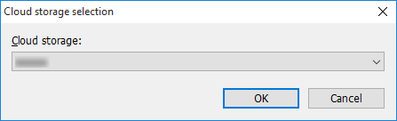
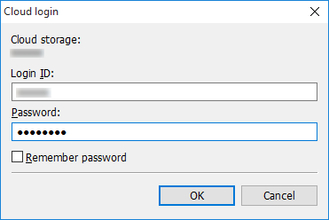
The Cloud login dialog box is displayed.
-
Enter your account login ID and password for cloud service that is displayed in Cloud storage, and then click the OK button.
 Note
Note-
If proxy authentication is required, the Proxy authentication dialog box will be displayed.
Carry out proxy authentication by entering the username and password of the proxy server that was set by Windows.
-
