
MG2900 series Setup
- Android -
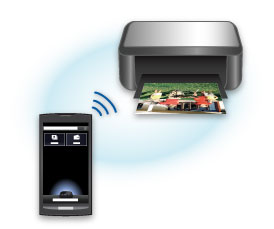
Set up the printer by using "PIXMA Printing Solutions," an application for Android.
By using "PIXMA Printing Solutions," you can print or scan from a smartphone or tablet easily.
You can also check the printer's ink model numbers and other information.
Downloading the Application
Download free from Google Play.
 Important
- Download requires registration for a Google account.
- The application can be downloaded for free; however, transmission fees for connecting to Google Play apply.
- Download is not possible if your operating system environment does not support the application. The application download page may not appear as well.
Application Setup
After completing installation of the application, follow the steps below to set up the product.
 Note
Note
- The displayed screens may vary depending on your device.
-
Make sure that the product is turned on.
-
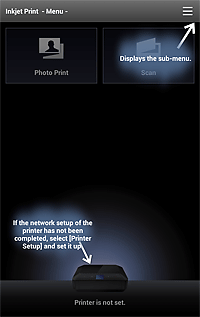
Start the application, then tap the screen.
 Note
Note- The license screen appears upon initial startup.
-
Check if your product name is displayed below
 (Printer).
If displayed, setup has been completed. The subsequent steps are not required.
If not displayed, tap (Printer), then proceed to the next step.
-
Tap Detect Printer.
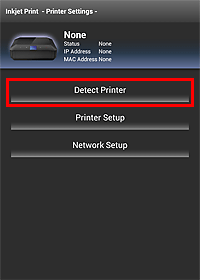
Select your product in the displayed screen to complete the setup. In that case, the subsequent steps are not required.
If your product is not detected, proceed to the next step to continue with the setup.Note- Detection may take time.
- If your product is not detected even though its network connection is already completed, make sure that the product is connected to the same access point as the smartphone or tablet.
-
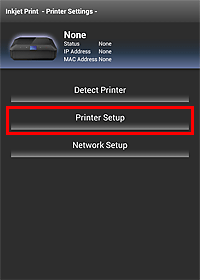
Tap Printer Setup.
-
Select the printer connection method.
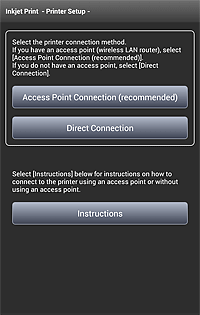
-
Tap Setup Guide.
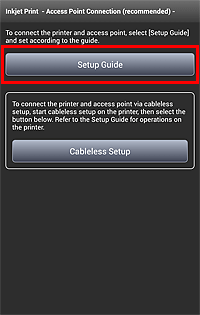
-
Follow the on-screen instructions to set.
When network setup is complete, return to the application screen, then perform Step 3 (and Step 4 as needed) again.
