
Registering Printer with Canon PRINT - Android -
Downloading Canon PRINT
قم بتنزيل التطبيق من تنزيل Canon PRINT.
Registering Printer with Canon PRINT
Follow the steps below to register the printer with the app.
 Important
- If you have a wireless router, connect your smartphone or tablet (hereinafter "smartphone") to the wireless router.
- If you do not have a wireless router, enable Wi-Fi in the Wi-Fi settings screen on your smartphone.
- For the operation procedure, see the manual supplied with the smartphone or wireless router, or contact the manufacturer of the smartphone or wireless router.
In this section, descriptions are based on the screens displayed when using Android 8.0.
 Note
Note
- Screens displayed may vary depending on your smartphone.
-
Check that printer is turned on.
-
Start app.
-
Tap Yes.
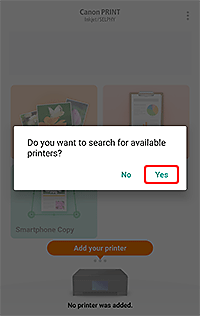
Follow the on-screen instructions to register your printer.
When the following screen appears, the printer registration is complete. Proceed with the settings or other operation as needed.
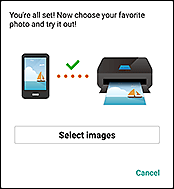
If this screen does not appear, see If Available Printer Is Not Found.
Note- لمعرفة كيفية الطباعة باستخدام تطبيق Canon PRINT، راجع الطباعة من هاتف ذكي أو جهاز لوحي.
If Available Printer Is Not Found
Note
-
When the following screen appears even during the procedure, the printer registration is complete. Proceed with the settings or other operation as needed.
-
Check that printer is turned on.
-
Start app.
-
Tap Yes.
-
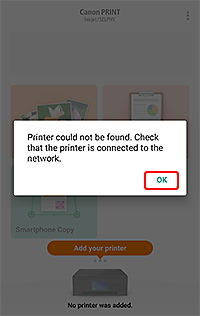
Tap OK.
-
Tap If Printer Cannot be Found.
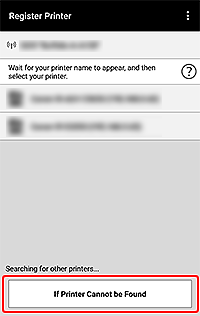
-
Tap Auto Connection (recommended).

Follow the on-screen instructions to register your printer.
When the following screen appears, the printer registration is complete. Proceed with the settings or other operation as needed.
