การสแกนด้วย Chromebook
The following procedure is an example for Chrome OS 128.
-
Connect printer and Chromebook.
Scanning over a Network
Check that the printer and Chromebook are connected to the same network.
If the printer is not connected to the network, using a smartphone, Windows, or Mac, follow the steps below to connect the printer to the network.
-
From smartphone, Windows, or Mac, access the following page.

https://ij.start.canon
-
Select
 Set Up, and then follow on-screen instructions to complete setup.
Scanning with a USB Connection
Connect the printer and Chromebook with a USB cable.
-
-
Scan.
-
Click
 (Time) at the bottom right.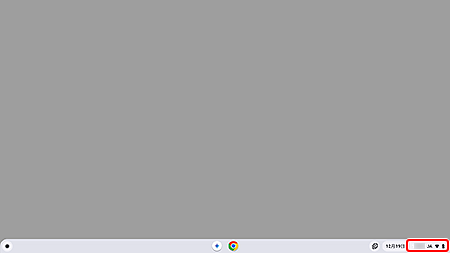
-
Click
 (Settings).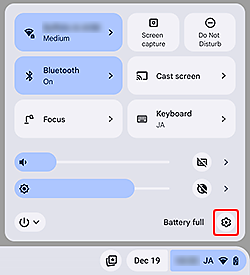
-
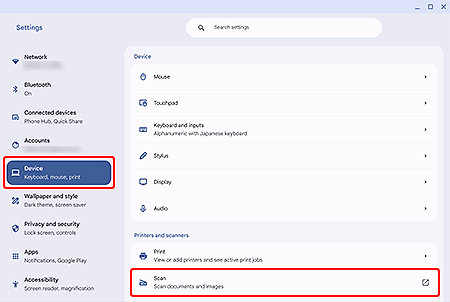
In the Settings screen, click Device, and then select Scan.
Printer search starts; when complete, the scan window opens.
-
Place item, specify scan settings, and then scan.
 หมายเหตุ
-
คุณยังสามารถสแกนจากแอพ Canon PRINT ของ Canon ได้อีกด้วย
-
ตรวจสอบการเชื่อมต่อเครือข่ายของเครื่องพิมพ์
ตรวจสอบว่าเครื่องพิมพ์และ Chromebook เชื่อมต่ออยู่ในเครือข่ายเดียวกัน
-
ติดตั้งและเริ่ม Canon PRINT

- วางรายการ
- แตะ สแกน
- ตรวจสอบการตั้งค่าและแตะ สแกน
-
-
