
Wired Connection
Before Starting Wired Connection Setup
-
Make sure that the printer is turned on.
If the power is on, the POWER lamp (A) will be lit.
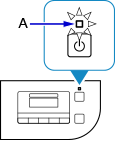
(Appears in a new window)
If the printer is performing cleaning, print head alignment, or other processes
Wait for the process to finish, before starting setup.
-
You will need an Ethernet cable (sold separately).
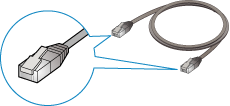
-
Remove the Cap (B) from the port located on the left side at the back of the printer.
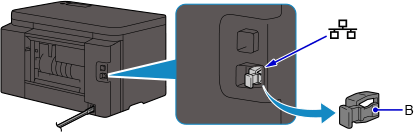
-
Connect the printer and a network device (router, etc.) with an Ethernet cable (C).
Do not connect to any other port.
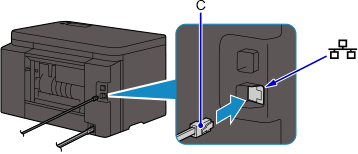
-
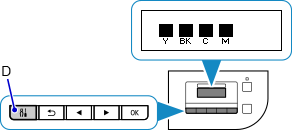
Make sure that the screen below is displayed.
If another screen is displayed, press the Setup button (D) on the printer.
-
Press the Setup button.
-
Use the
 or
or  button (E) to select Device settings.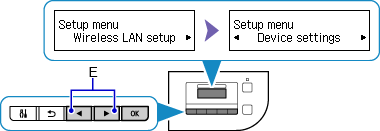
-
Press the OK button.
-
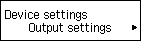
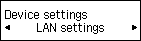
Select LAN settings.

-
Press the OK button.
-
Select Change LAN.
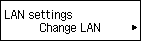
-
Press the OK button.
-
Select Wired LAN.
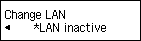
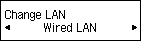
-
Press the OK button.
-
When the screen on the below appears, press the Setup button.
When connection is complete, LAN appears at the right of the screen.
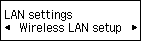
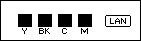
The network connection setup is now complete.

