
Changing the Connection Mode
You can switch the connection mode or change the network name (SSID) and other settings on the printer.
Setup is required when connecting to the printer for the first time. Return to the application software and set up the printer.
-
Press
 (HOME) on printer.
 -
Select Settings with printer's

 buttons and press OK button.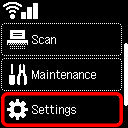
-
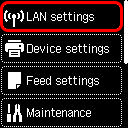
Select LAN settings and press OK button.
-
Select the connection mode you want to use and press OK button, then proceed with the setup.
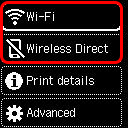
When Wi-Fi is selected
Select Wi-Fi setup in the Wi-Fi screen and press OK button, then select a Wi-Fi setup method.
When Wireless Direct is selected
Select Connect to smartphone, and then follow the on-screen instructions.
When Changing Wireless Direct Settings
Press (HOME), and then select Settings, LAN settings and Wireless Direct.
Select Change network name (SSID), Change password, or 2.4GHz/5GHz switch and press OK button, then change the network name (SSID), password, or frequency band.
 Note
Note
- Wireless Direct connects a device (such as a computer) to the printer at 2.4 GHz.
To connect at 5 GHz, select 5GHz in the 2.4GHz/5GHz switch screen.
Depending on your country or region, this printer does not support Wireless Direct using the 5 GHz band.
