
Changing the Connection Mode
You can switch the connection mode or change the SSID and other settings on the printer.
Setup is required when connecting to the printer for the first time. Return to the application screen and set up the printer.
-
Press the HOME button (A) on the printer, use the
 or
or  button (B) to display Setup, then press the right Function button (C).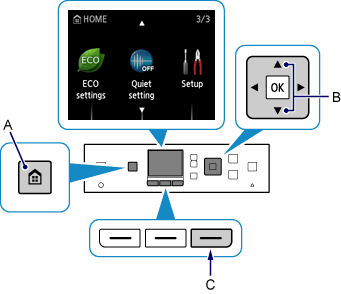
-
Use the
 or
or  button (D) to select Device settings, then press the OK button.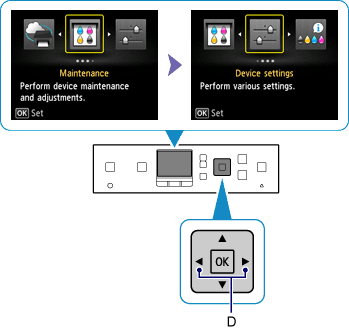
-
Select LAN settings, then press the OK button.
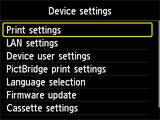

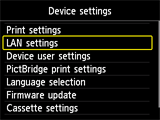
-
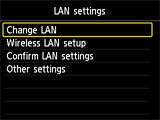
Select Change LAN, then press the OK button.
-
Select the connection mode you want to use, then press the OK button and proceed with the setup.
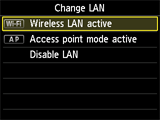
When Wireless LAN active is Set
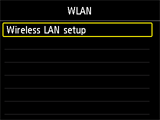
Press the HOME button, select WLAN > Wireless LAN setup, then press the OK button.
The printer will automatically search for compatible access points.
Select a wireless connection setup method in the Wireless LAN setup screen.
When the screen below appears, press the Stop button.
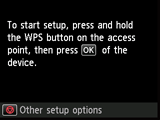
After connecting the printer to an access point, you need to connect your device (such as a smartphone) to the access point in the Wi-Fi settings screen on the device.
When Changing the Access Point Mode Settings
Press the HOME button, select Setup > Device settings > LAN settings > Other settings > Access point mode settings, then press the OK button. You can change the SSID and Password (network key) settings in the displayed screen.
