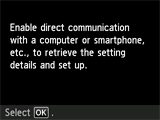
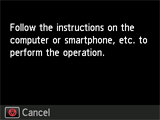
Connection via Cableless setup
 Important
-
If a device is connected to the Internet via a wireless router, and you then connect it to a printer in Wireless Direct mode, the existing connection between the device and wireless router will be disabled. In that case, the connection of the device may switch to a mobile data connection automatically depending on your device. When you connect to the Internet using a mobile data connection, charges may apply depending on your contract.
(Appears in a new window)
-
Press the HOME button (A), use the
 or
or  button (B) to display WLAN, then press the left Function button (C).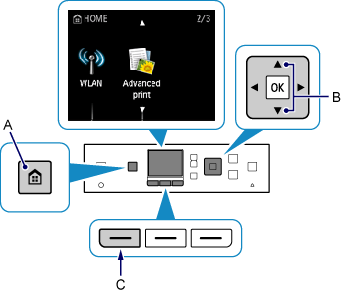
-
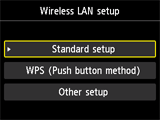
Select Wireless LAN setup, then press the OK button.
The printer will automatically search for compatible access points.
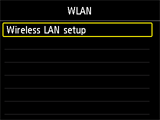
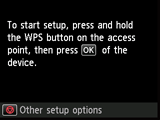
When the screen below appears, press the Stop button.
-
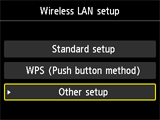
Select Other setup, then press the OK button.

-
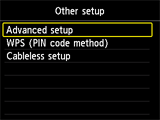
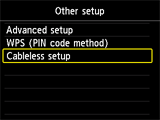
Select Cableless setup, then press the OK button.
-
Press the OK button, then return to the application screen and proceed with the setup.