
Manual connect -WPA/WPA2/WPA3-
-
Tap the input area.
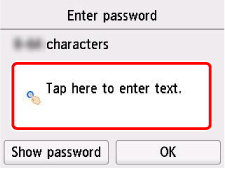
-
Enter the password. Text entry is case-sensitive.
For how to enter characters and how to change the character type, see "Entering Numbers, Letters, and Symbols" (appears in a new window).
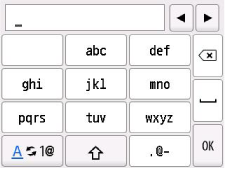
If you don't know the password for your wireless router, see the wireless router manual or contact its manufacturer.
-
Tap
 .
. -
Tap OK.
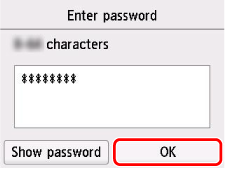
-
When the following screen appears, tap OK.
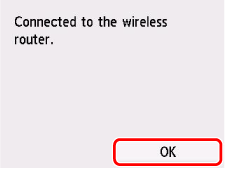
If a different screen appears, see "Troubleshooting."
-
Select
 (HOME).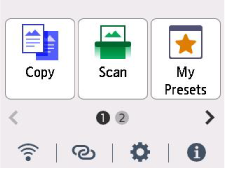
The network connection setup is now complete.
Once connection is complete,
 appears at the lower left of the screen.
 -
Connect your computer or smartphone to the printer using the app.
